The Data Picker
The Data Picker is a visual tool for inserting dynamic data into your content without writing a single expression. You search for the data you want, pick it, and Unblock writes the matching {{ … }} for you.
Everything the Data Picker builds is a normal expression. You never have to type a dot, a pipe, or a brace. And the moment you want to, hand-written expressions and picked ones are completely interchangeable.
Opening the Data Picker
Select any Unblock block that can hold text (Paragraph, Heading, Text, and so on), then click the data button in the block toolbar. A searchable popover titled Dynamic Data opens with your cursor in the search box.
The button appears only on text-bearing blocks. Structural wrappers like Section, Container, and Div hold other blocks rather than text, so they have no data button.
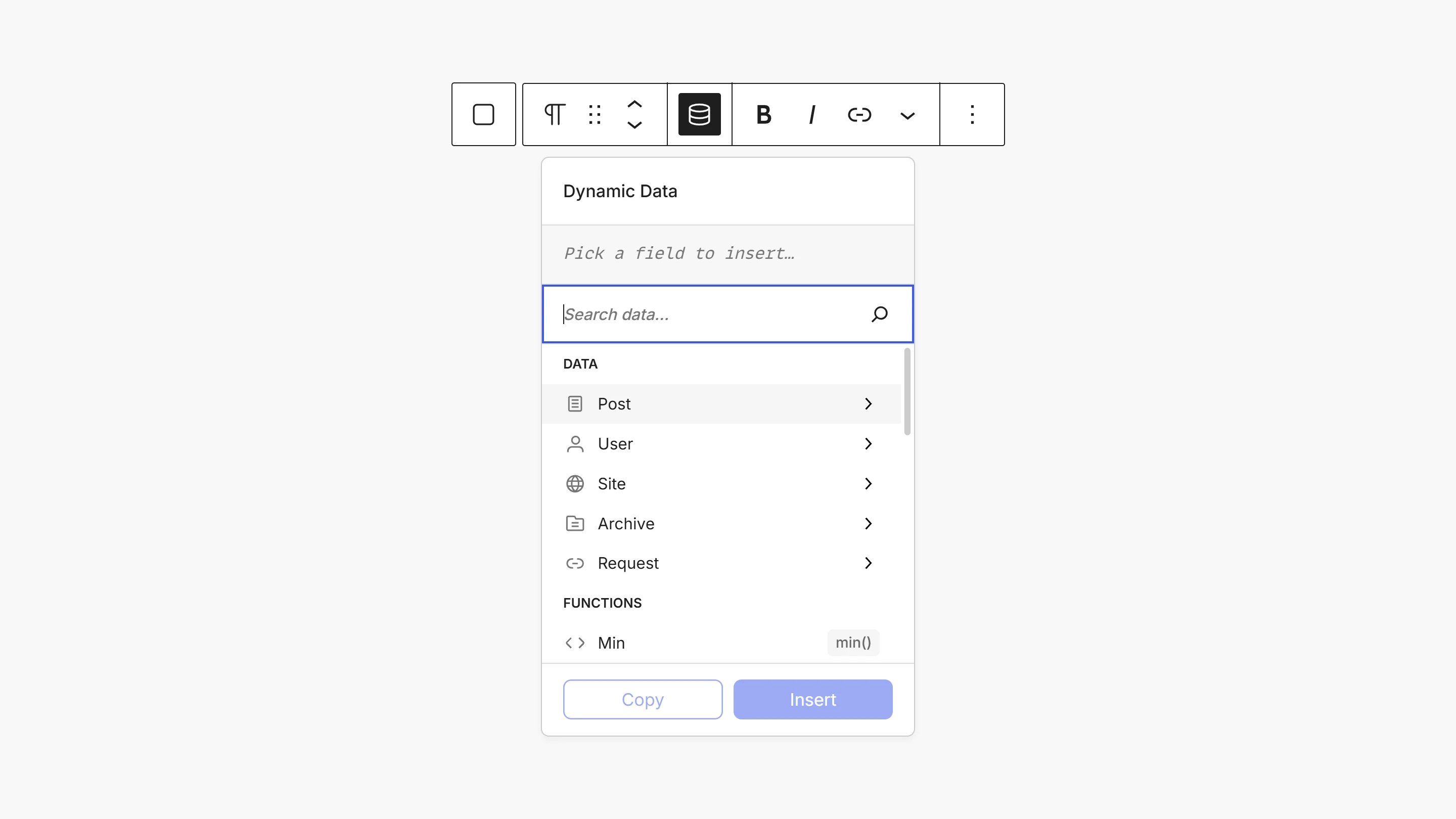
What you can insert
The picker groups everything you can reach:
- Data covers the providers like Post, User, and Site.
- Loops give the current item inside a Loop block.
- Variables are the values you defined with Variable blocks.
- Functions are helpers like
get_post,date, orminthat you insert as a call. - Value is a literal text, number, or
true/false.
Insert a field
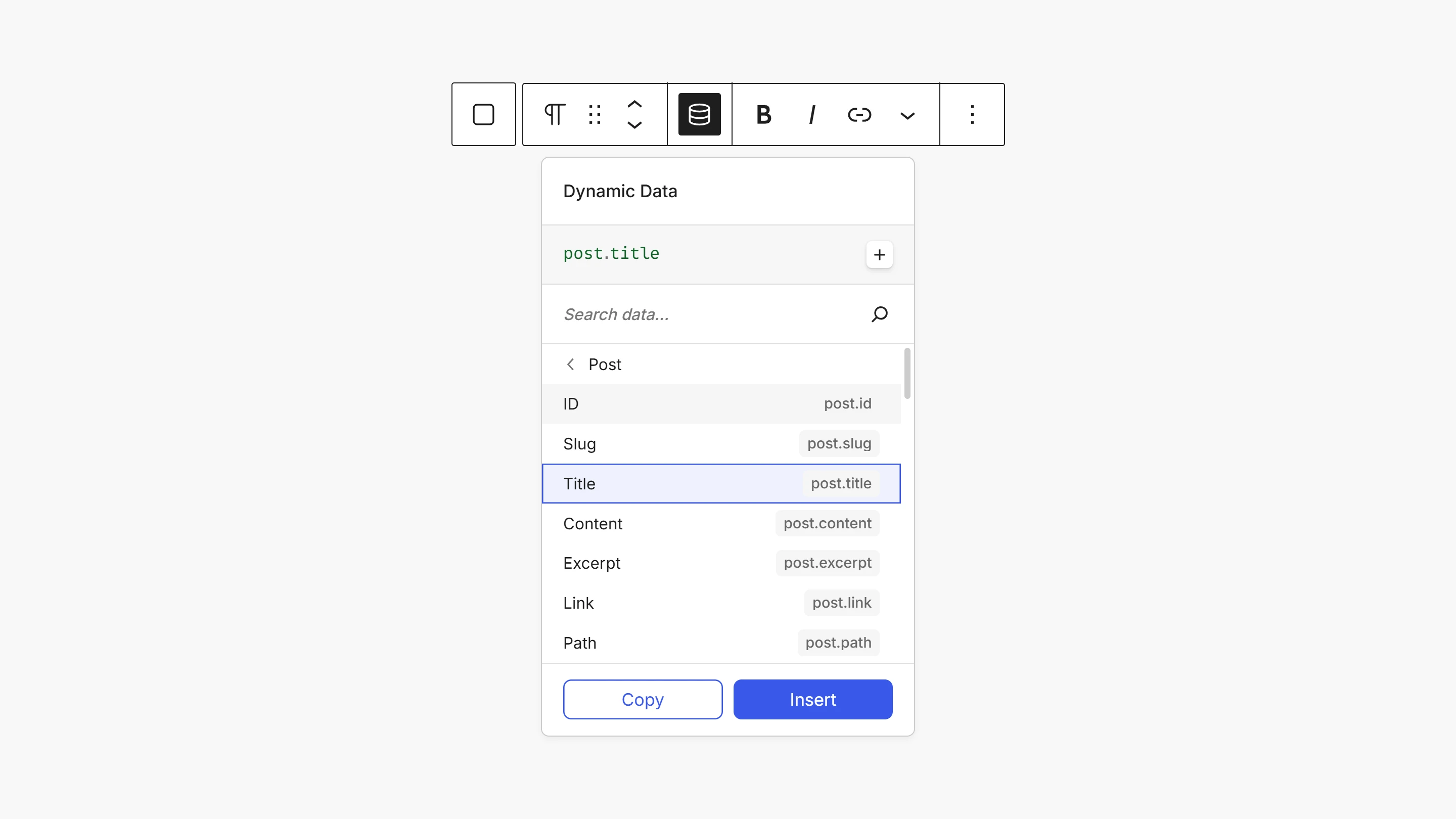
The everyday task, showing a piece of data, takes three steps and no syntax:
- Open the picker.
- Type what you're looking for, e.g.
title. The list narrows and Post Title rises to the top. - Click it (or press Enter) to add it to the preview.
- Click Insert (or press Enter again), and Unblock drops
{{ post.title }}at your cursor.
What you pick: Post Title
What gets inserted: {{ post.title }}
Drill into related data
Some data contains more data. A post's author is a user, and its featured image is an image. Those rows show a chevron (›) and can be opened:
- Type
author→ Author appears with a ›. - Click it → the breadcrumb reads
post / authorand the list swaps to the author's own fields. - Pick Display Name →
{{ post.author.display_name }}.
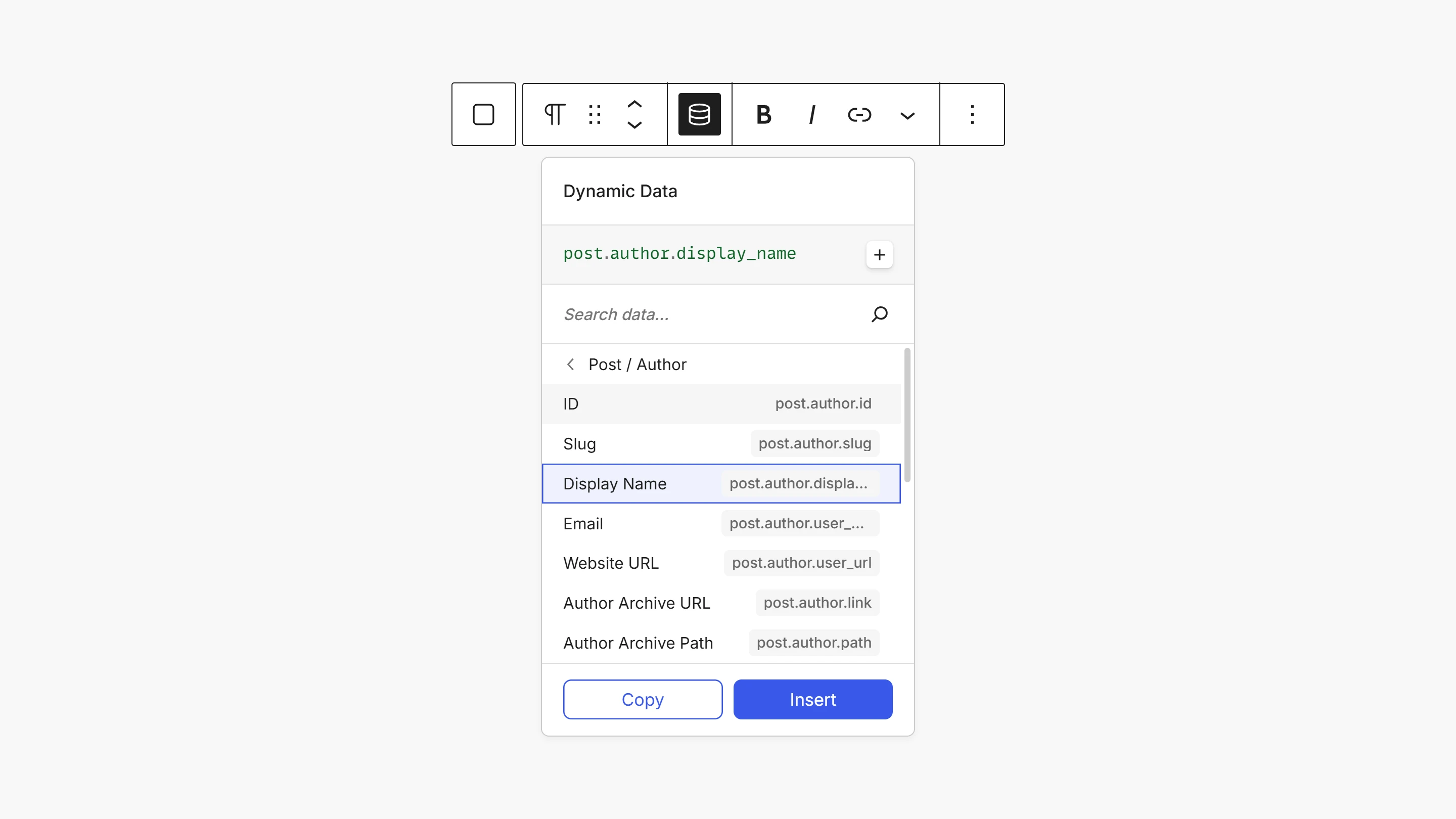
You can keep drilling as deep as the data goes.
Transform or combine: Filters & Operators
To do more than show a raw value, click + to open Filters & Operators:
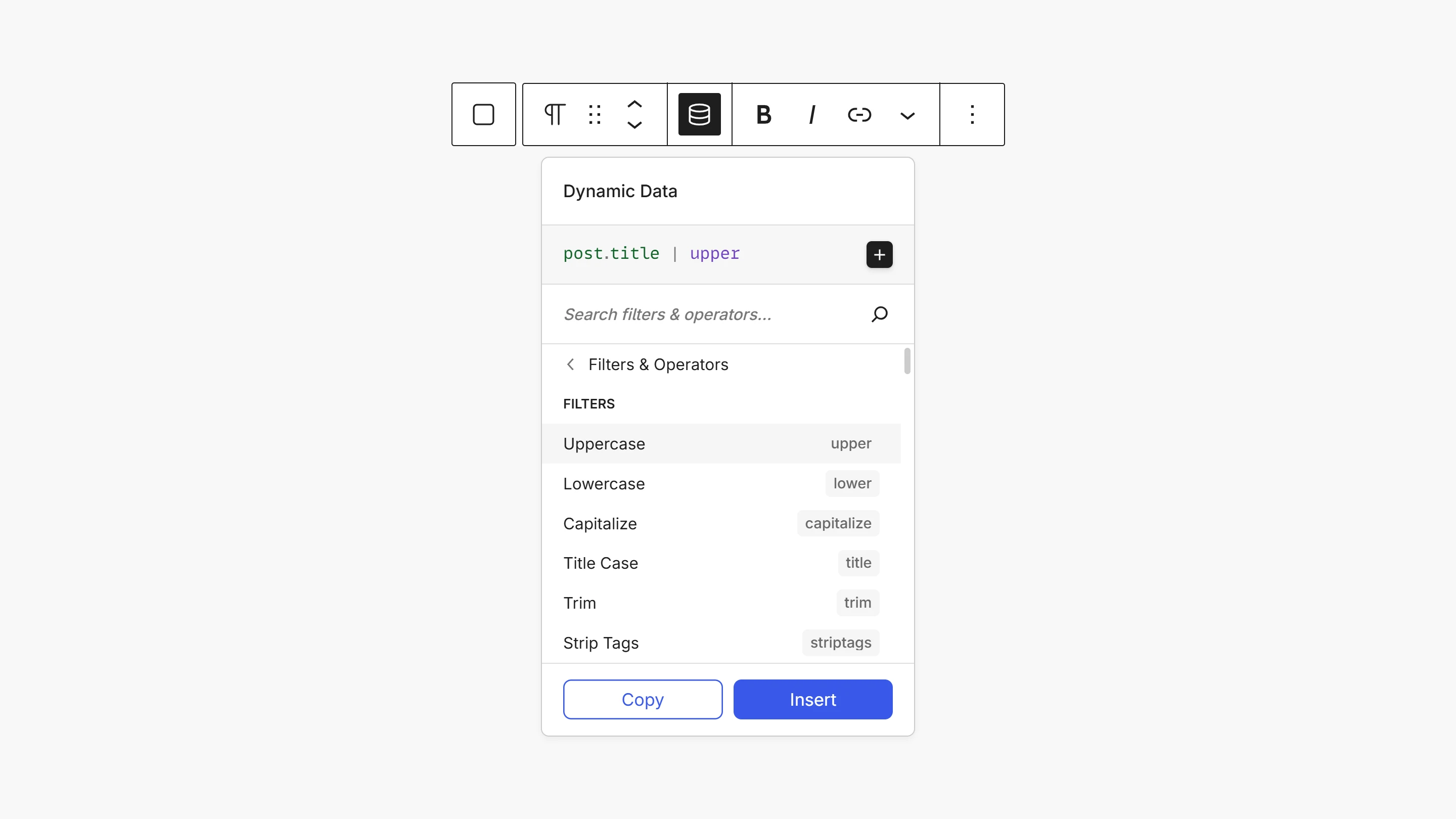
- Filters transform a value, like
upperto capitalize,truncateto shorten, ordateto format a date. - Operators combine values or supply a fallback, for example showing a default when a field is empty.
For instance, build post.title, then add the Uppercase filter:
What gets inserted: {{ post.title | upper }}
Fill in values
A few fields need a value before they can be inserted, such as a custom field key or an image size. The picker suggests matching options as you type, so you don't have to remember exact names:
- Pick Custom Field.
- Start typing in the key field, and existing custom field keys are suggested.
- Choose one →
{{ post.meta('subtitle') }}.
Edit an existing expression
To change an expression already in your content, place your cursor inside it and open the Data Picker. It opens pre-filled with that expression, ready to adjust. Choosing Insert replaces it in place.
Next steps
- Your First Expression shows how to write expressions by hand once you're comfortable.
- Expressions & Syntax is the complete reference.
- Filters and Providers list everything the picker can reach.