AI Assistant
This page introduces the AI Assistant and shows you how to start using it.
What is Unbot AI
Unbot is a chat assistant built into the WordPress block editor. It helps you build pages, design layouts, and write content — all through conversation.
You describe what you want. The AI builds it.
No switching between tools. No copy-pasting code. You stay in the editor the whole time.
Requirements
The AI Assistant runs through WordPress Connectors, the AI integration layer built into WordPress. You need at least one AI provider configured before the assistant can work.
- Go to Settings → Connectors in your WordPress admin
- Add a provider (OpenAI, Google, Anthropic, or any supported service)
- Enter your API key and save
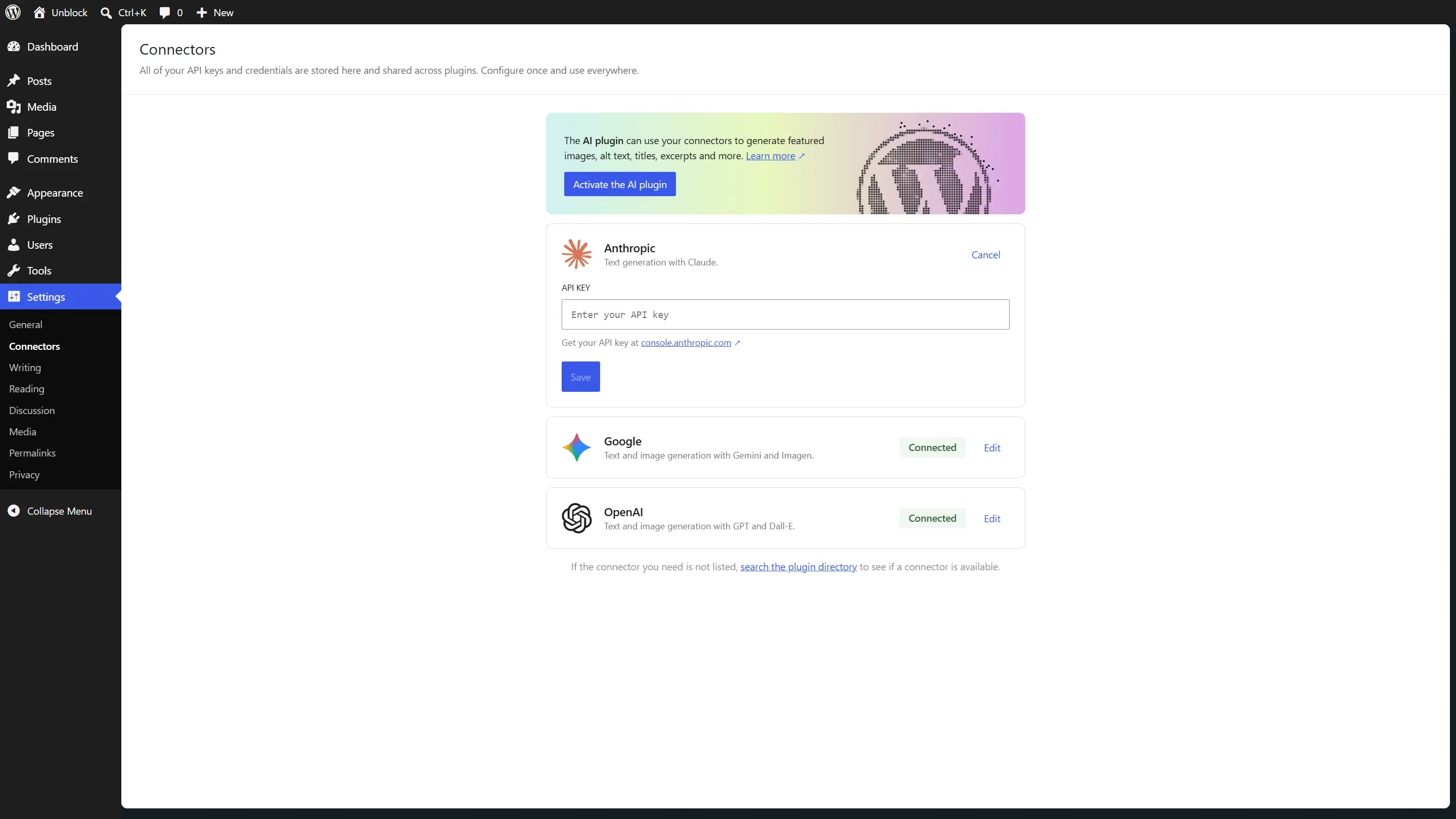
If no provider is configured, Unblock shows a link to the Connectors page when you open the assistant.
The AI Assistant does not include its own API key. You must configure a provider in WordPress Connectors first, otherwise the chat panel won't work.
Who can use it
Anyone who can edit posts (Contributors, Authors, Editors, Administrators) can open the assistant, as long as the site license is active and the assistant is enabled in the Unblock settings.
The assistant never does more than you could do by hand. Each tool follows the matching WordPress permission:
- Styles need the right to manage the site's global CSS (Administrators by default). Without it, the AI builds and edits blocks and reuses the existing classes.
- JavaScript needs the
unfiltered_htmlcapability, like the JS panel of a block. - Image generation needs the right to upload files, like the media library.
Developers can restrict the assistant to specific roles with the unblock/ai/chat/can_use filter.
Opening the AI Assistant
Look for the Unbot icon in the editor toolbar. Click it to open the chat panel on the right side of the editor.
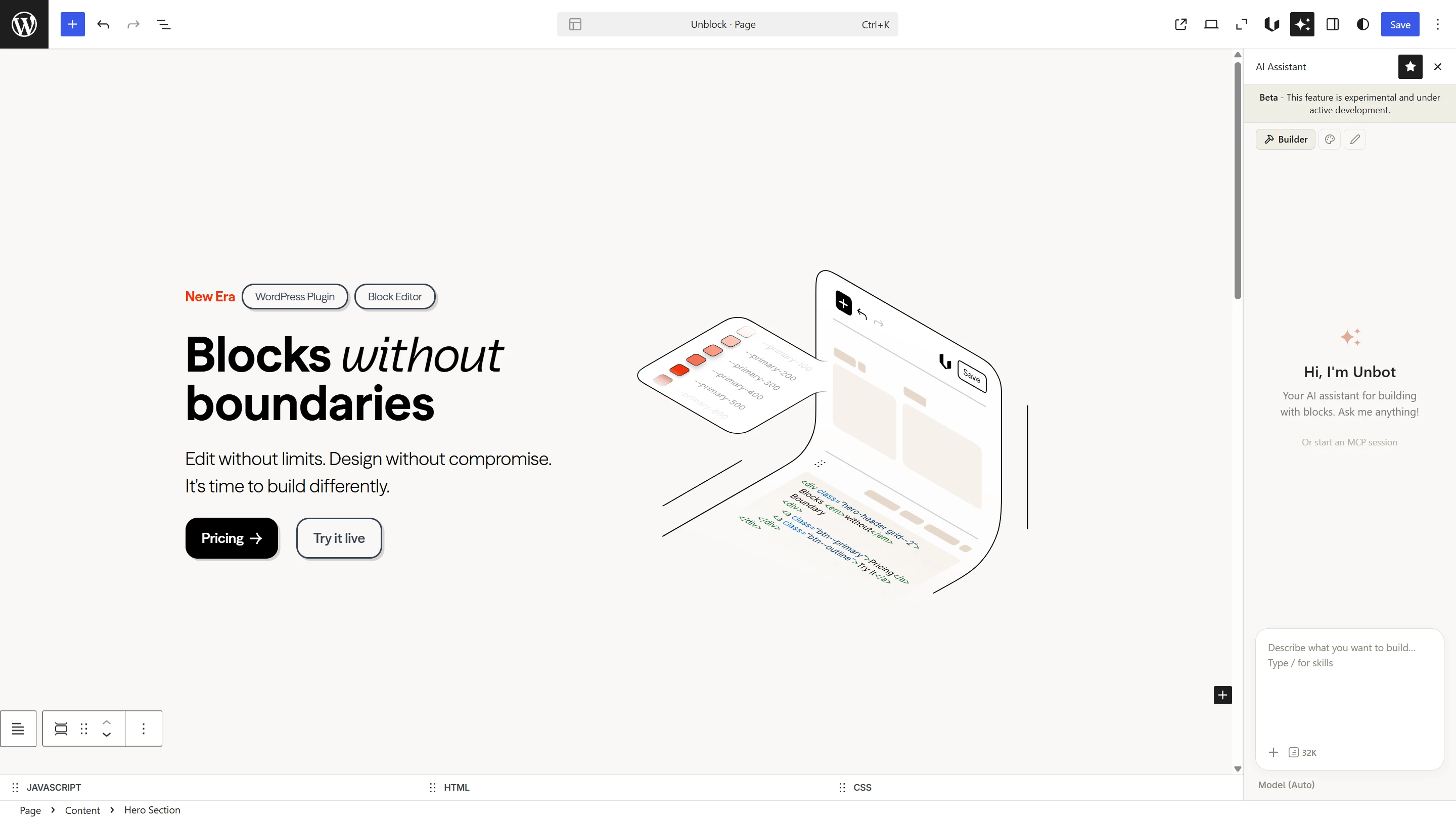
Three specialized agents
The AI has three agents, each focused on a different job:
- Builder — creates and modifies blocks, builds page structure
- Designer — handles visual styling like colors, spacing, and typography
- Writer — writes and edits text content
You switch between them using the icons at the top of the chat panel — the hammer (Builder), the palette (Designer), and the pen (Writer). See the Agents page for a full breakdown of each one.
File attachments
You can drag and drop images or PDFs directly into the chat. This gives the AI extra context — a design mockup to replicate, brand guidelines to follow, or a reference layout.
Response limit
The response limit controls the maximum length of AI responses. You'll find it in the input bar, next to the attach button.
- Short (4K) — quick answers and small edits
- Medium (16K) — most tasks
- Long (32K) — complex pages with many blocks (default)
- Unlimited — no cap, uses the model's maximum
If the AI cuts off mid-response, try increasing the limit.
Temperature
The temperature control adjusts how creative or predictable the AI responses are. You'll find it in the input bar, next to the response limit button.
- Auto — uses the active agent's default (Builder: 0.3, Designer: 0.7, Writer: 0.8)
- Precise (0.2) — deterministic, consistent output. Best for structured edits and code.
- Balanced (0.5) — a middle ground between predictability and variety.
- Creative (0.8) — more diverse and surprising output. Best for content writing.
When set to Auto, the temperature adapts as you switch agents — lower for Builder (where precision matters), higher for Writer (where variety helps).
Some Google Gemini models may return errors with custom temperature values. If you experience issues with a Google provider, switch back to Auto.
Conversation
Messages stream in real-time as the AI works. You can scroll back through the conversation to review what was done.
To start fresh, clear the conversation history. This resets the context and lets you begin a new task without previous messages influencing the result.
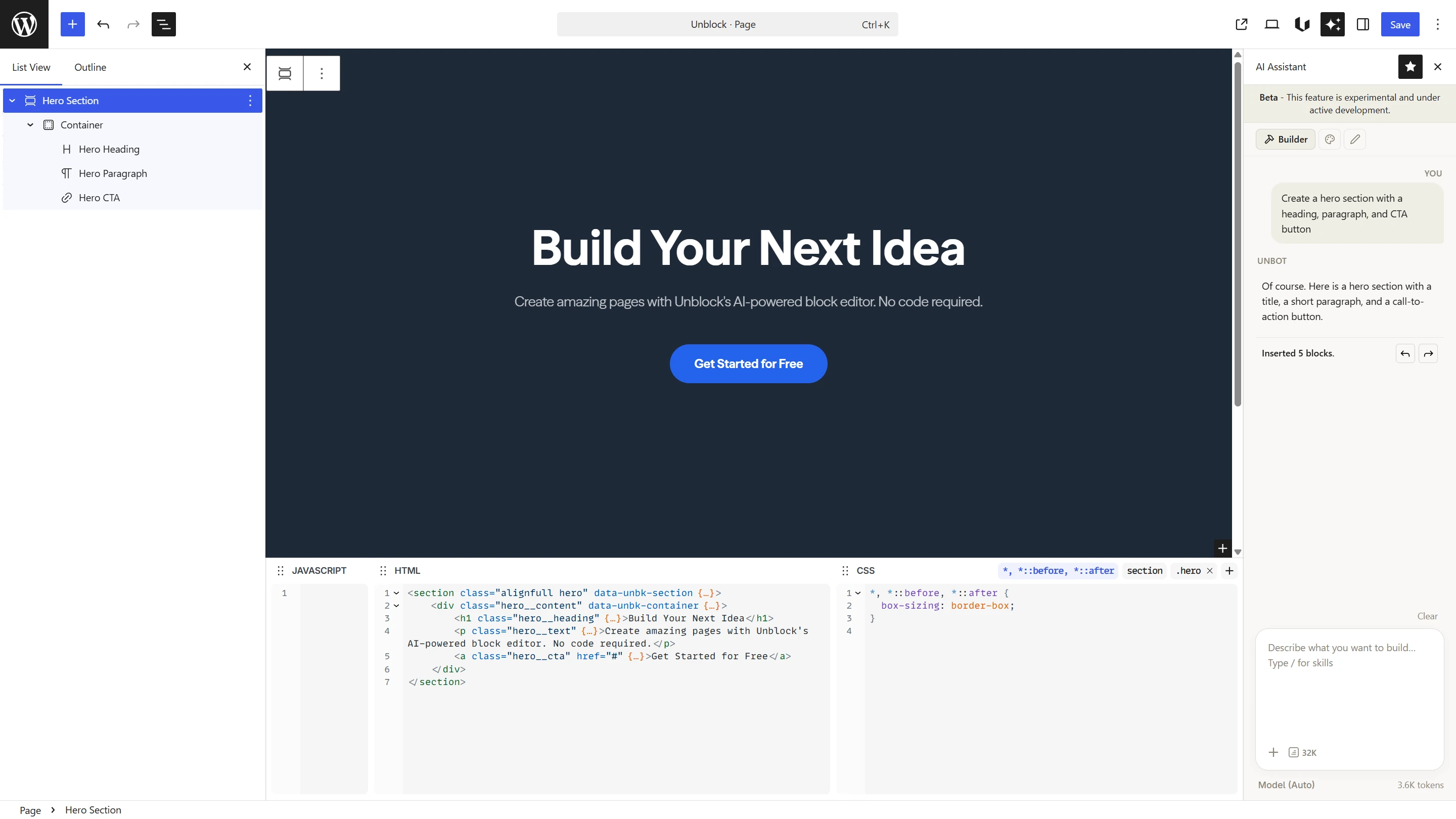
The AI works with what's on your page. If your page is empty, give it a detailed prompt. If your page already has content, the AI understands the existing structure and can modify it.
Next steps
- Agents — learn what each agent does and when to use it
- Skills — activate extra capabilities like image generation and animations
- Prompting Tips — write prompts that get better results