History
This page shows you how to review the changes made to your site and undo them, whoever made them: you, a teammate, the AI chat or your AI client.
Each save in the editor and each change an AI tool makes is recorded: the pages, posts and templates it touched, the CSS, the settings. You find them in the History tab of the Unblock manager.
Open the history
In the editor, click the Unblock button in the toolbar, then the History tab.
Sessions
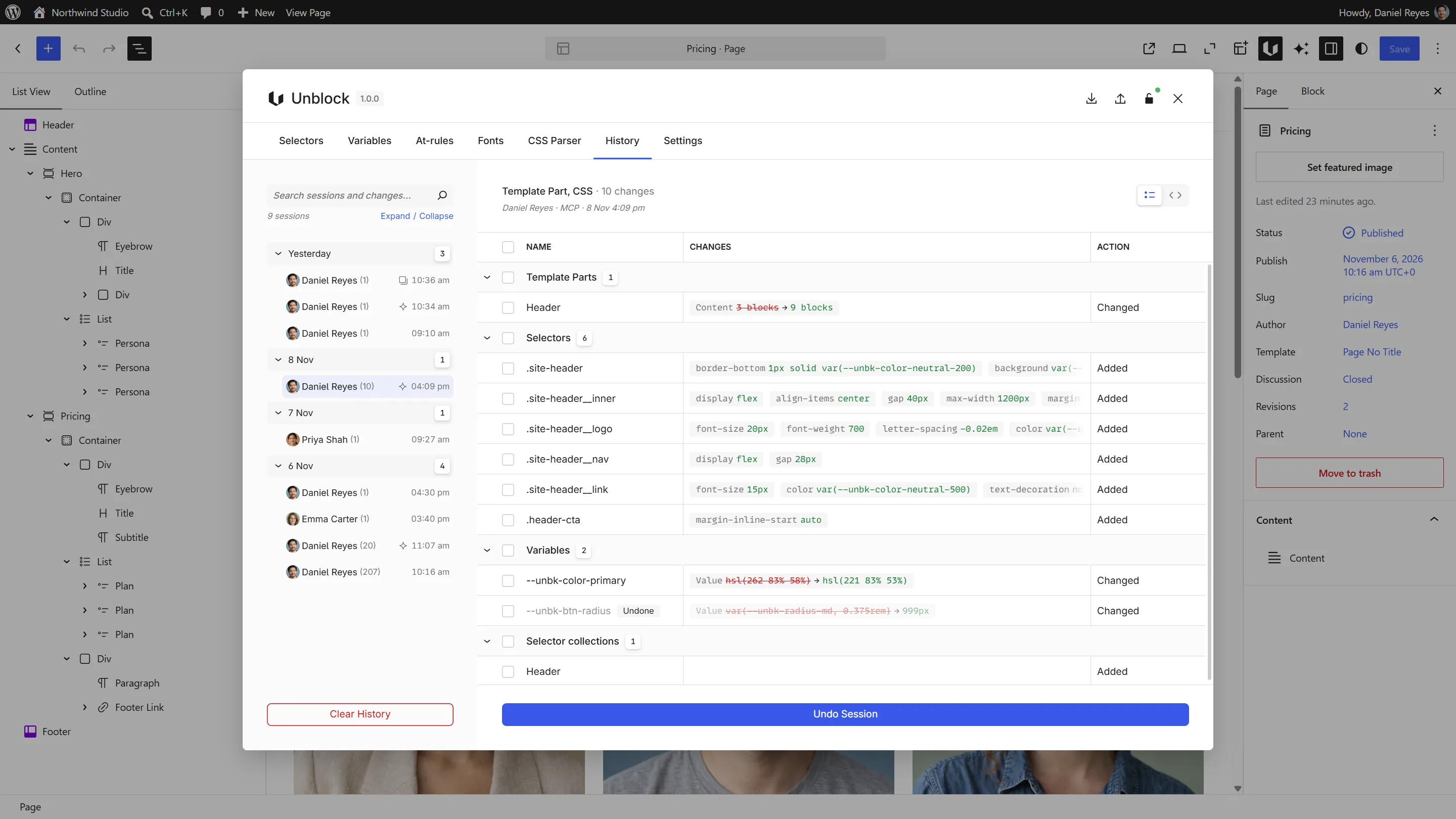
The changes are grouped into sessions, newest first, under their day. A session holds the changes of one person from one place: an editor tab, a message to the AI chat, or your AI client's connection. After 30 minutes without a change, the next change opens a new session.
Each row shows who, how many changes, and when. An icon tells you what made it:
| Icon | Made by |
|---|---|
| None | The editor |
| Sparkle | The AI chat or your AI client |
| Copy | CSS waiting for a draft copy |
The search above the list finds a session by its author, its date, or the name of anything it changed, such as .btn-primary or a page title.
You see your own sessions. An administrator sees everyone's.
See what a session changed
Click a session. The Summary lists its changes by kind: pages, template parts, selectors, variables, settings. Each row gives the name, what changed as before → after, and whether it was added, changed or removed.
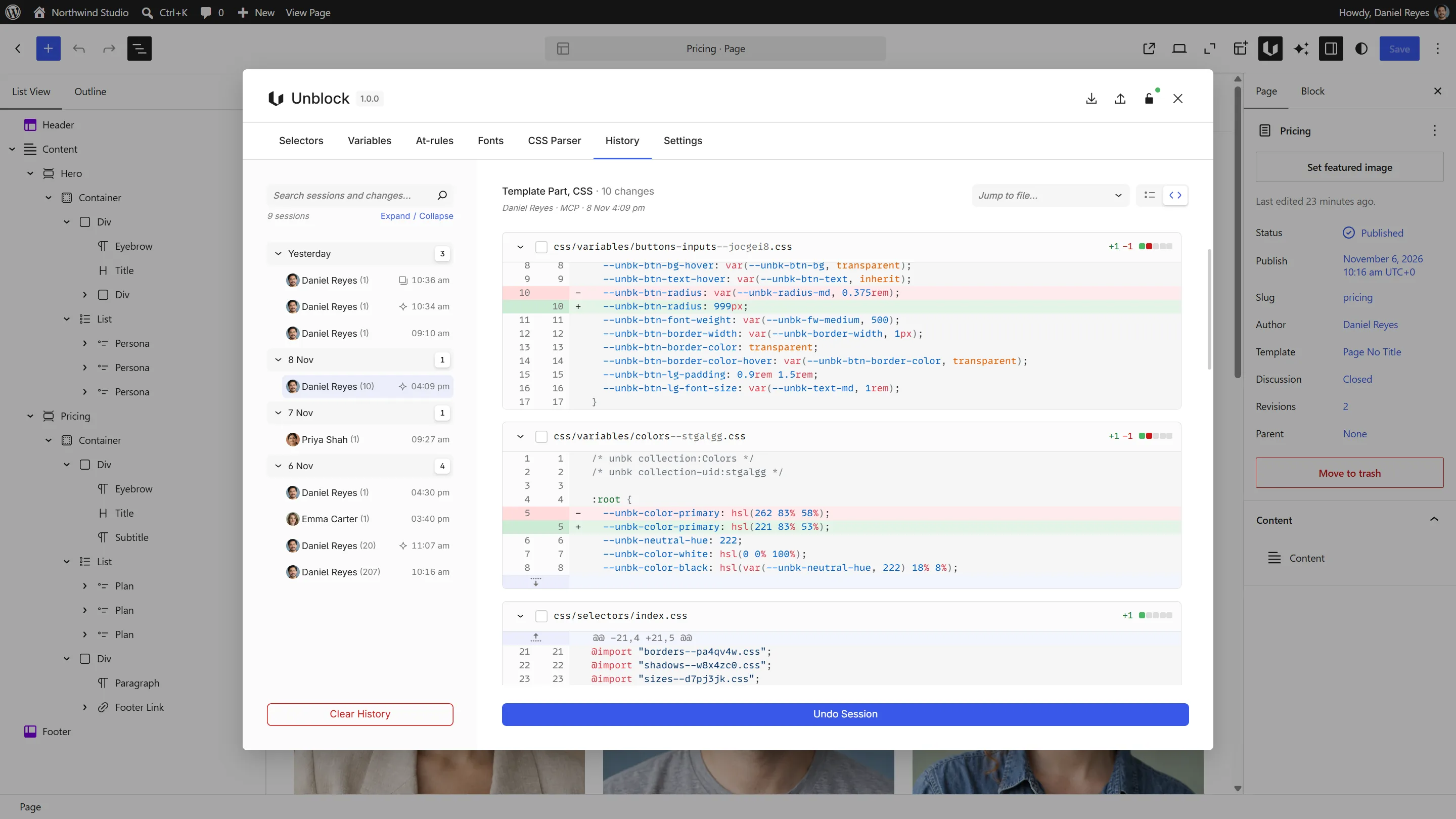
Switch the view to Code, at the top right, to read the same changes as files: the CSS one file per collection, the pages and templates as HTML, with the lines removed in red and the lines added in green. The Show in Code button of a row opens that change there.
Undo and redo
- Undo Session takes back every change of the session.
- Some changes only: tick them, then click Undo 2 changes. A change you undid shows an Undone badge.
- Redo: tick an undone change, then click Redo 1 change. When the whole session is undone, the button reads Redo Session.
An undo puts each thing back as it was before the session. For a CSS rule, it takes back only the properties the session changed, so what a later change did to the other properties of that rule stays.
When something changed since
If a later change touched the same thing, the undo is refused and nothing is undone, so that later change is not lost:
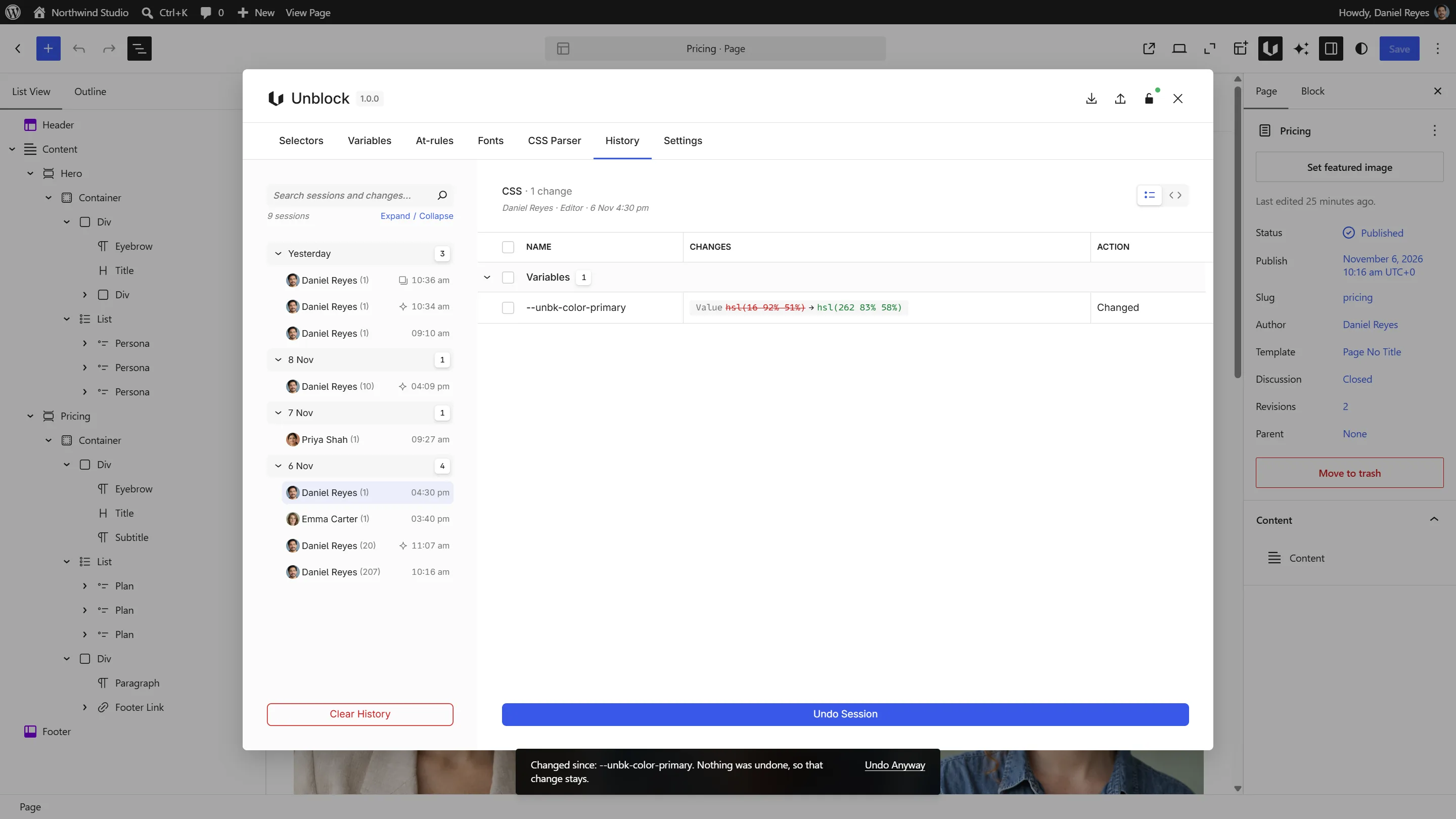
Undo Anyway writes the session's values back over the later change. Use it when you want that later change gone too.
When the CSS is still in use
Undoing a selector or a variable that a session added is refused while your pages still use it. You choose:
- Keep the CSS in use undoes the rest and leaves those rules in place.
- Undo what uses it too also takes back the content that uses them.
If you have a page open in the editor while someone undoes a change to it, the editor tells you: "The history changed this post since you opened it." Click Reload before you go on. Saving first would overwrite the undo with your older copy.
With your AI client
Over MCP, your AI client reads the history and undoes or redoes changes when you ask, with the unblock/list-changes, unblock/undo-changes and unblock/redo-changes tools:
Undo what you just did on the pricing page.
The client undoes a whole change or its latest session. Picking single changes stays in the History tab. When the undo changes a published page or a template, the client asks you first, as for any change to your live site. It never uses Undo Anyway: a refused undo comes back to you.
Draft copies
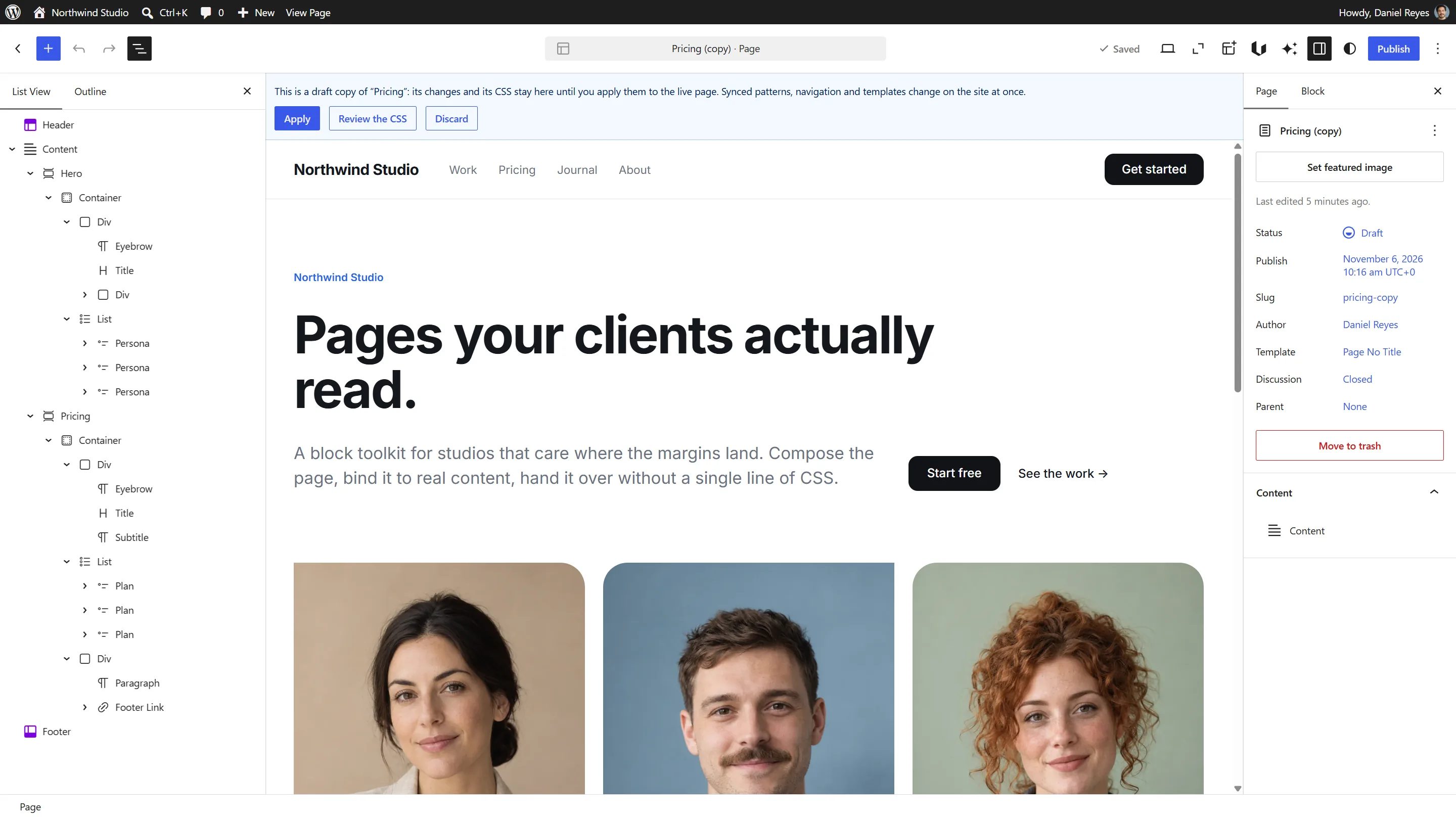
When your AI client works on a draft copy of a page, the CSS it writes waits with the copy. The live site keeps its styles, and the copy's preview shows the new ones. In the history, that CSS shows under a session marked with the copy icon, as "Waits for the copy".
Open the copy in the editor: a banner offers Apply, which puts the page and its CSS live, Review the CSS, which opens that session in the History tab, and Discard.
Settings
In the Unblock manager, Settings > History sets how much is kept:
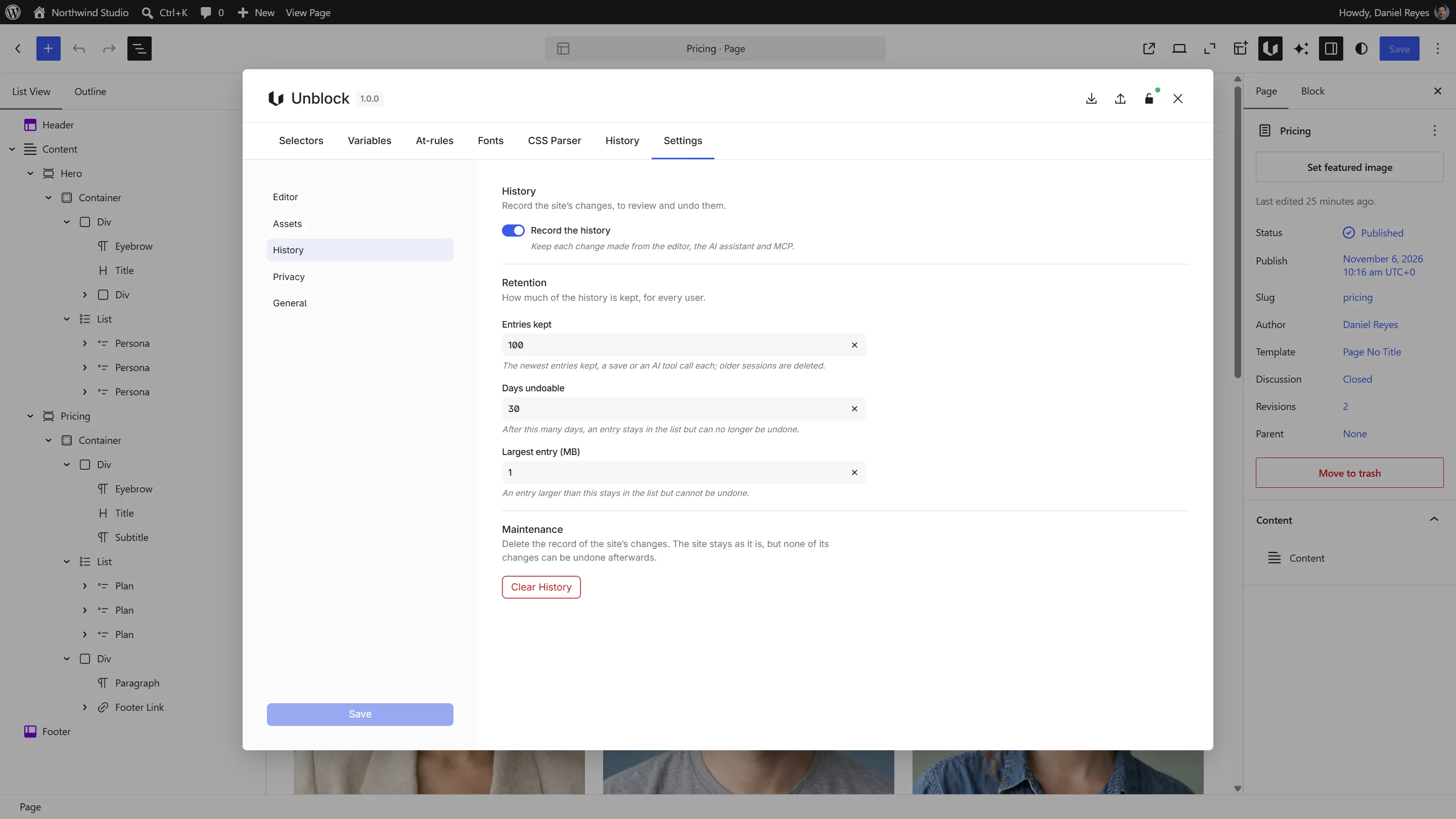
| Setting | Default |
|---|---|
| Record the history | On |
| Entries kept | 100 |
| Days undoable | 30 |
| Largest entry (MB) | 1 |
- Record the history: turned off, new changes are not recorded. What is already recorded can still be undone.
- Entries kept: a save or an AI tool call is one entry. Past this number, the oldest sessions are deleted.
- Days undoable: after this many days, a change stays in the list but can no longer be undone.
- Largest entry: a bigger change stays in the list but cannot be undone.
- Clear History deletes the record of your changes, or of everyone's for an administrator. Your site stays as it is.
What the history cannot bring back
- A media file you deleted: its file is gone.
- A category or tag you deleted: WordPress would make it again under a new ID.
- A plugin your AI client installed: the history names it. Deactivate it in Plugins.
- Custom fields a plugin keeps in a table of its own, such as Meta Box's custom tables. The history names them and leaves them as they are.
- The language and translations set in WPML's language box. Polylang's come back.
Changes made outside the editor and the AI tools, such as on other wp-admin screens, are not recorded. In the editor, the boxes of other plugins are, as far as they save posts, custom fields, terms or settings. An undo still sees what was not recorded: when it changed something since, the undo is refused.
The history does not replace WordPress revisions: each page keeps its own.
Next steps
- MCP Tools: the history tools your AI client uses
- Connect your AI client
- Design Tools: the selectors, variables and at-rules the history records