Variables
This page shows you how to create and manage CSS variables (custom properties) in Unblock.
What are variables
Variables are reusable values — colors, spacing, font sizes — that you define once and reference everywhere. Change a variable and every block using it updates automatically.
In CSS terms, they are custom properties like --color-primary: #f2330d.
The Variables panel
Open the Unblock modal and switch to the Variables panel. You'll see your variable collections on the left and a table of variables on the right.
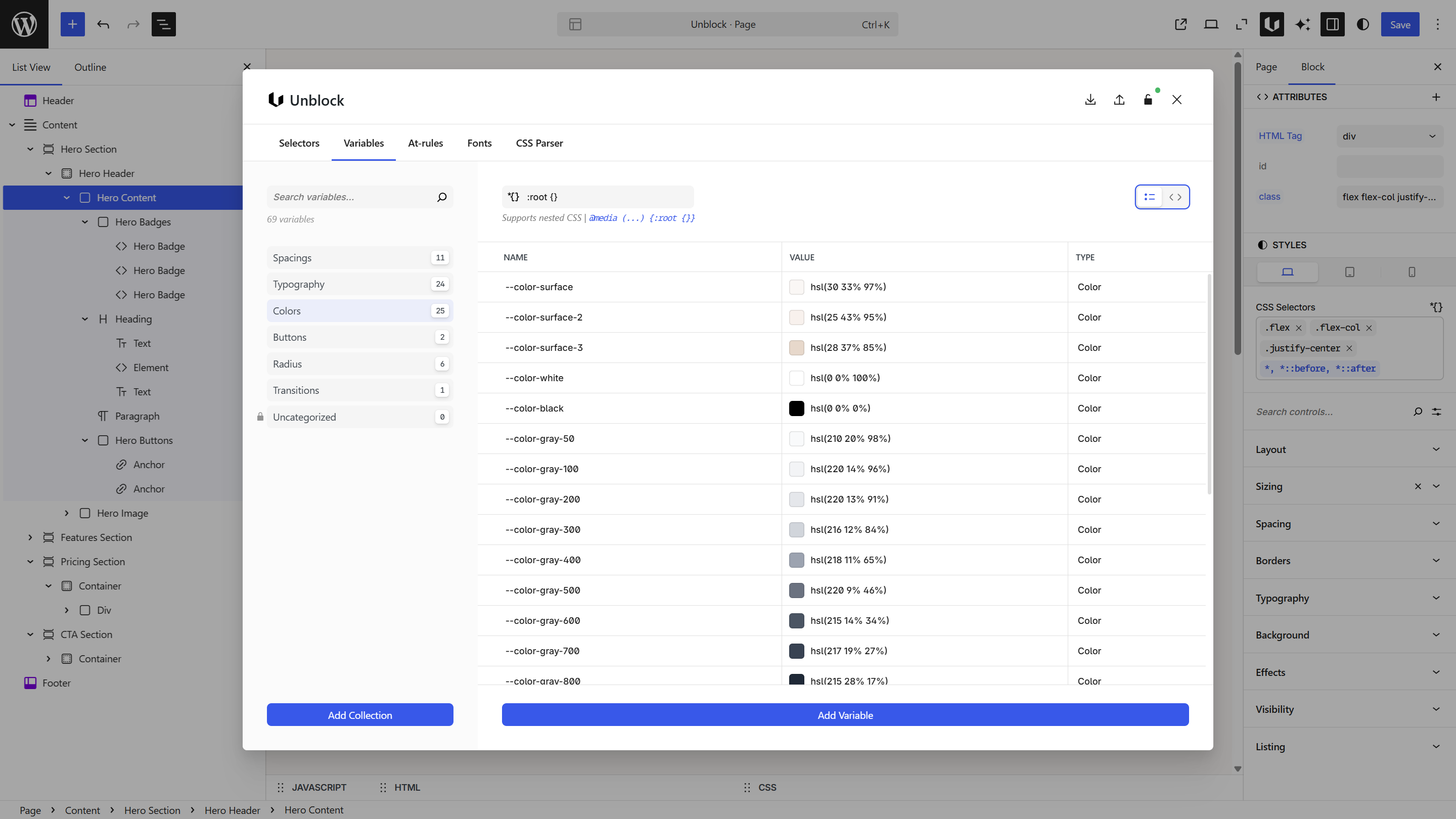
The top bar shows a :root {} indicator — this is where your variables are output. Use the switch button at the top right to toggle to a CSS editor view where you can copy-paste variables directly as CSS.
Collections
Variables are organized into collections. Each collection groups related tokens — colors, spacing, typography, and so on.
In the screenshot above, the user created collections like Spacings, Typography, Colors, Buttons, Radius, and Transitions. You start with no collections — create your own to organize your tokens.
Click a collection name to filter the table. The count badge shows how many variables are in each collection.
Create a collection
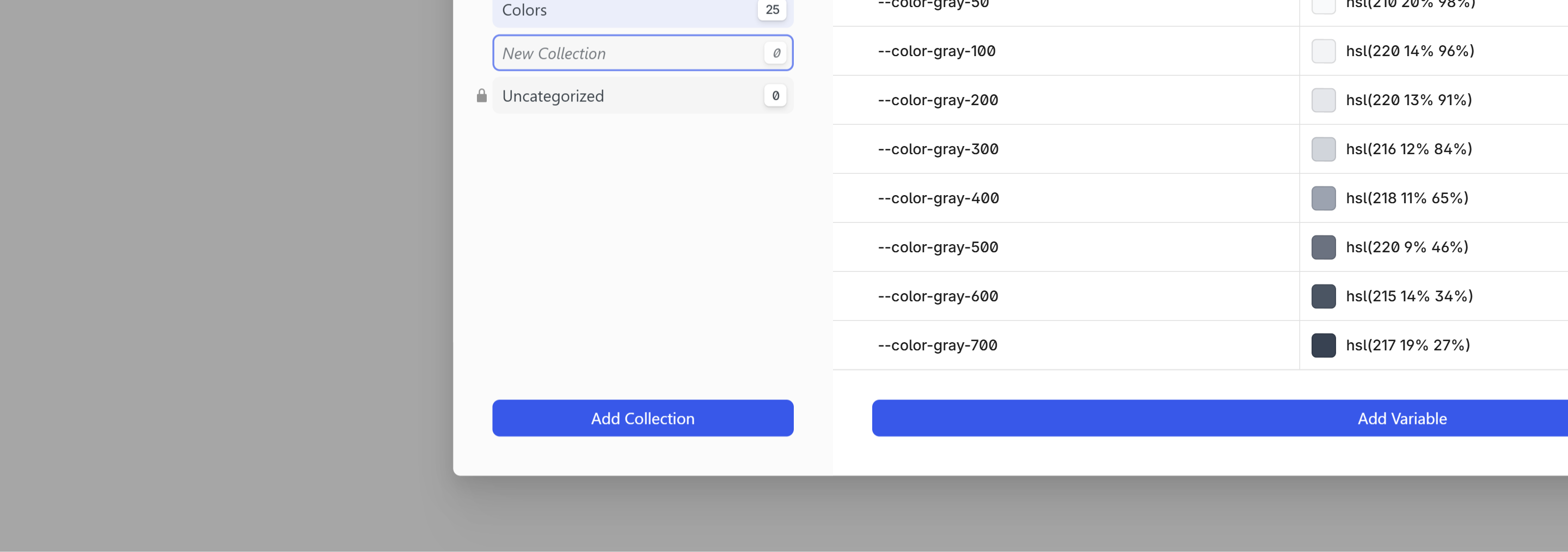
Click Add Collection at the bottom of the sidebar. Type a name that describes the category of tokens it holds and press Enter to confirm.
Creating a variable
Click Add Variable at the bottom of the table.
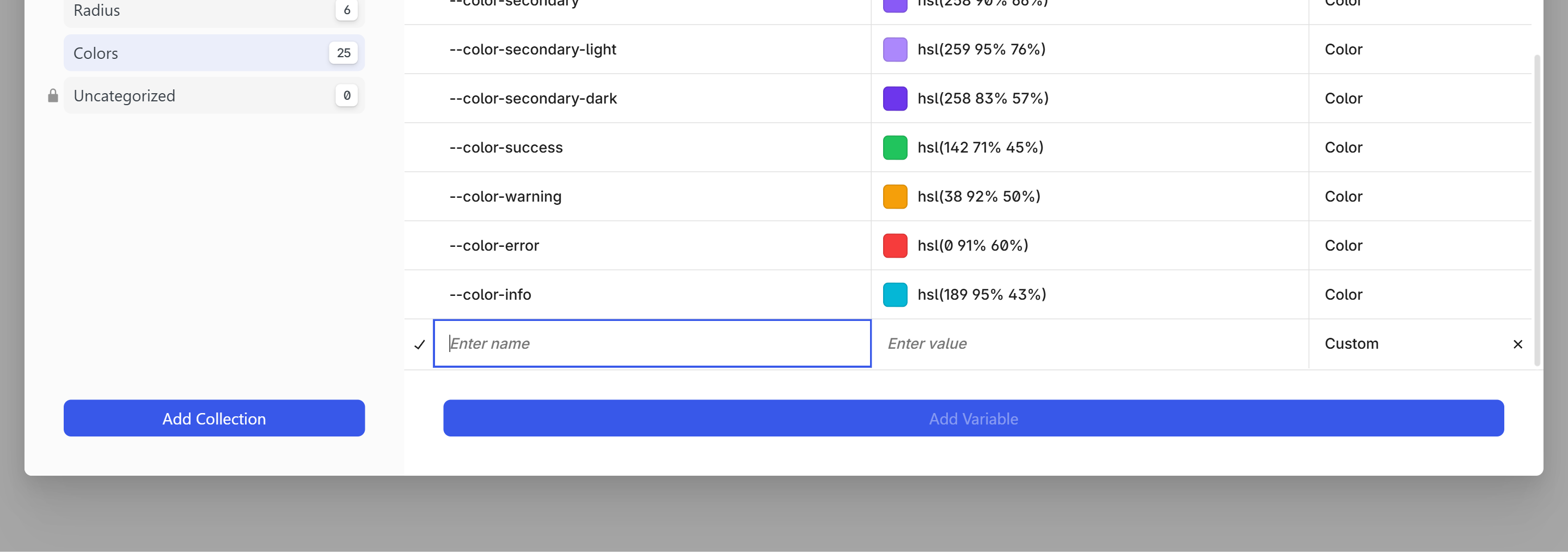
Fill in:
| Field | What to enter | Example |
|---|---|---|
| Name | The variable name — with or without -- prefix | color-primary |
| Value | Any valid CSS value | #14854f |
| Type | Automatically detected from the value | Color |
The -- prefix is optional. You can type color-primary or --color-primary — Unblock adds the prefix automatically if needed.
Variable types
The Type column is automatically detected based on the value you enter, but you can override it manually if needed. For color variables, you get a color swatch preview next to the value.
When you add variables through the CSS editor view, types are detected automatically — no need to switch back to the table view.
At-rule variables
In the CSS editor view, you can override variable values inside any at-rule — media queries, container queries, or others:
@media (--tablet-device) {
  :root {
    --container-width: 750px;
    --font-size-hero: 3.5rem;
    --spacing-section: 4rem;
    --grid-columns: 3;
    --sidebar-width: 280px;
  }
}
Each collection maps to one selector. If you need both base variables and responsive overrides, use separate collections — one for the base values and another for the media query overrides.
Using variables
Once defined, reference your variables anywhere in Unblock — in the Styles panel or the CSS inspector.
In the Styles panel
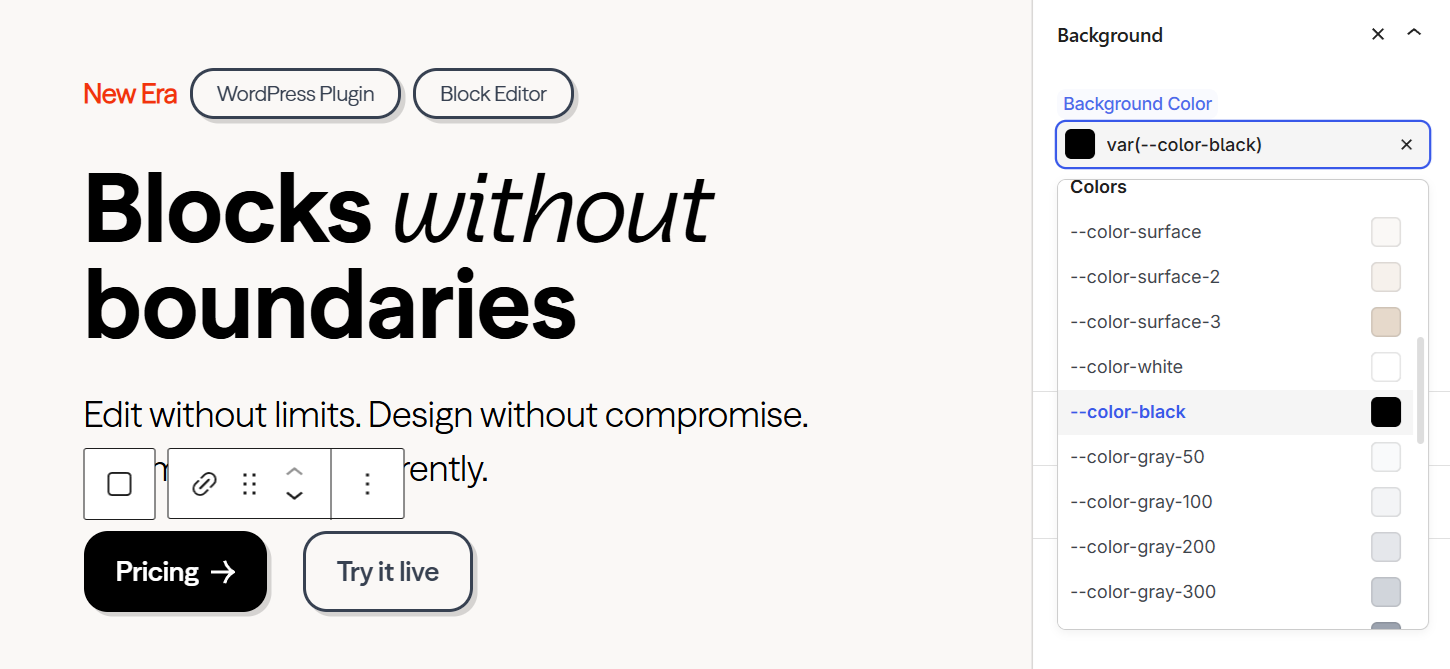
The Styles panel on the right sidebar accepts variable references directly. Type -- in any input field to see your variables. Select one and Unblock automatically wraps it in var() for you.
In the CSS inspector
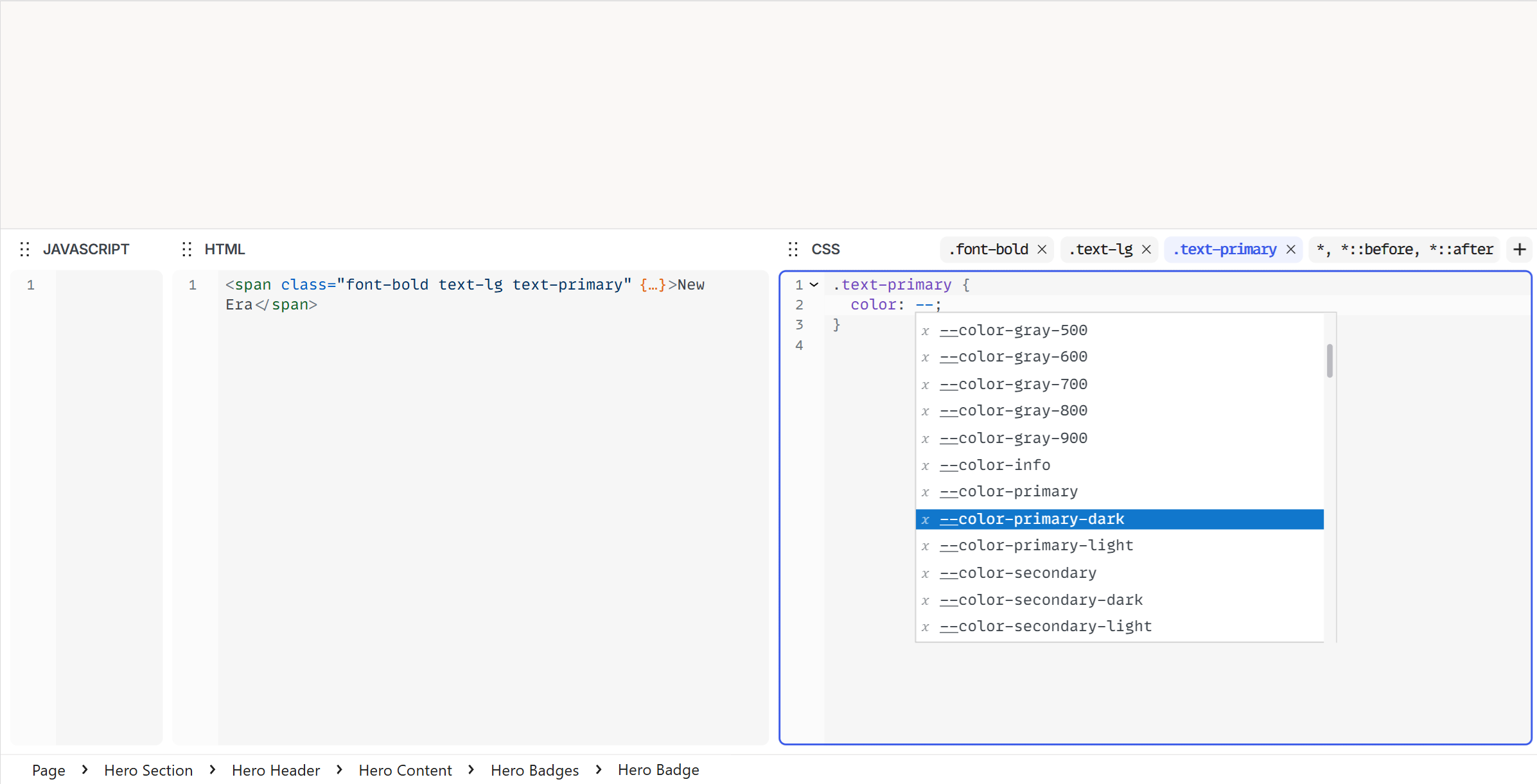
The bottom CSS inspector also supports variable autocomplete. Type -- to see available variables. Select one and Unblock wraps it in var() automatically.
Fallback values
If a variable might not be defined in every context — for example, a component-level token used outside that component — you can provide a fallback:
color: var(--color-primary, #14854f);
padding: var(--space-md, 1rem);
If your variables are defined globally, fallbacks are unnecessary.
If a variable isn't applying, check the name matches exactly — variable names are case-sensitive. --Color-Primary and --color-primary are two different variables.