Fonts
This page shows you how to manage fonts in Unblock.
The Fonts panel
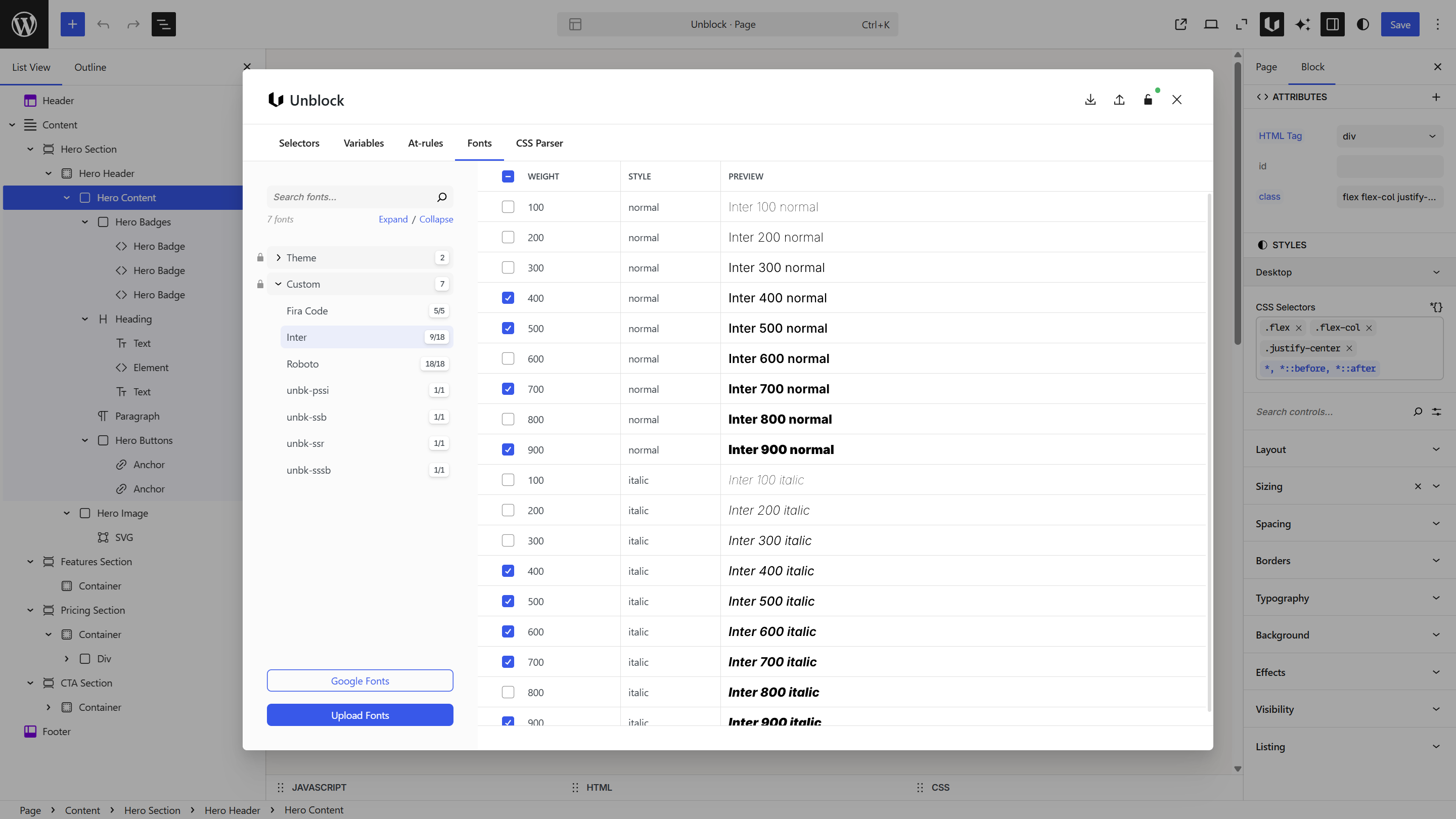
Open the Unblock modal and switch to the Fonts panel. Font families are listed on the left, organized into collections. Select a font to see its available weights and styles on the right.
The font system is synchronized with WordPress — fonts you add in Unblock are available in WordPress, and vice versa. Unblock also lets you use the font manager on classic (non-FSE) themes, where WordPress doesn't provide a built-in font UI.
Collections
Fonts are grouped into collections:
| Collection | What it contains |
|---|---|
| Theme | Fonts provided by your WordPress theme |
| Custom | Fonts you've added — Google Fonts or uploaded files |
The badge next to each font name shows how many variants are active out of the total available. For example, 9/18 means 9 of 18 weight/style combinations are loaded.
To remove a font, click the x icon next to it in the sidebar or in the table list.
Adding a Google Font
Click Google Fonts at the bottom of the sidebar.
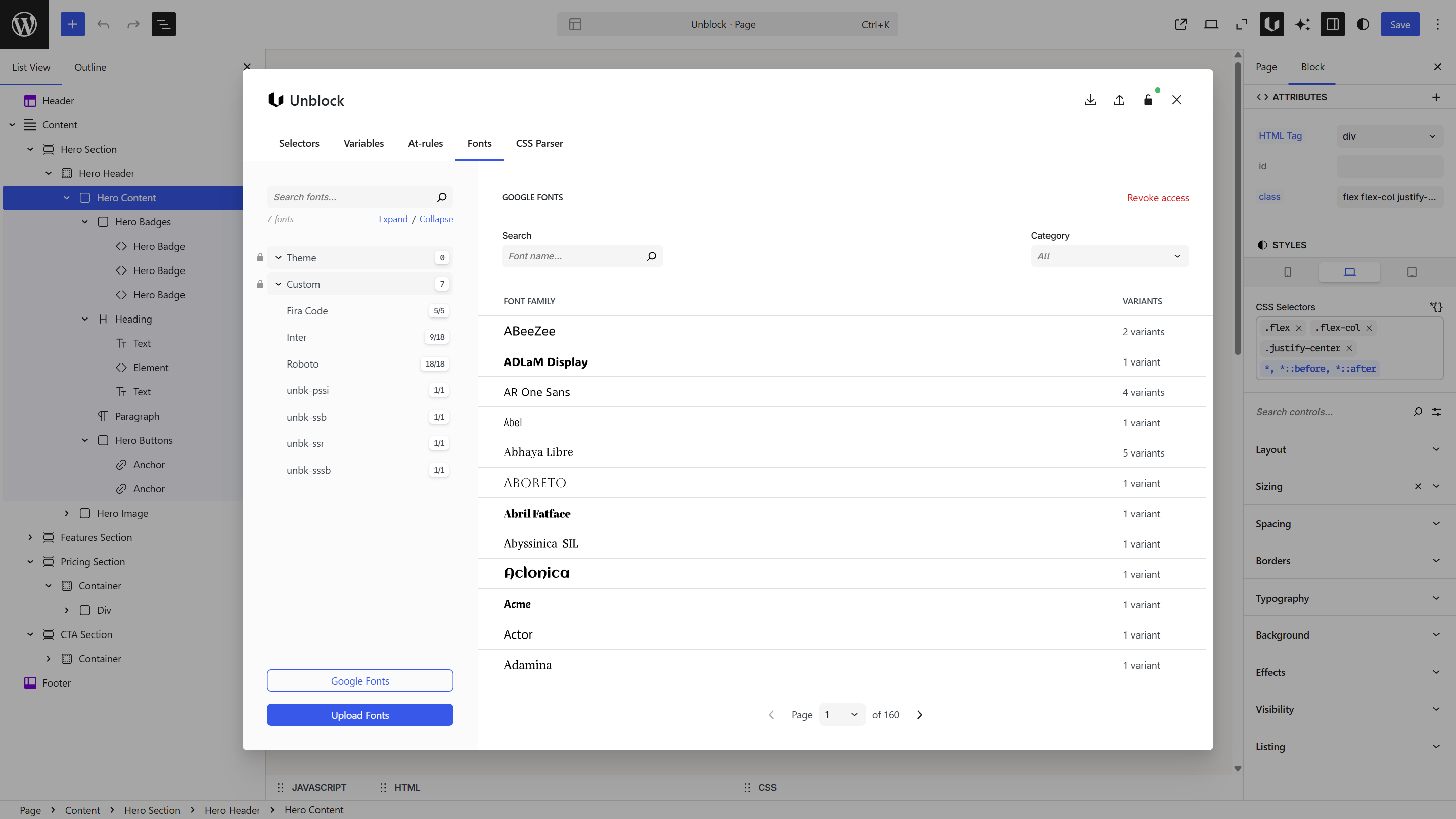
Search for the font you want, select it, and it's added to your Custom collection. Then select which weights and styles to load.
Uploading custom fonts
Click Upload Fonts at the bottom of the sidebar.
Upload .woff2, .woff, .ttf, or .otf files. The font appears in your Custom collection once uploaded.
Selecting weights and styles
When you click a font name, the table on the right shows every available weight and style combination. Check the ones you want to load.
| Column | What it shows |
|---|---|
| Checkbox | Toggle this variant on/off |
| Weight | Numeric weight (100–900) |
| Style | normal or italic |
| Preview | How the text looks at that weight and style |
Only checked variants are loaded on your site. Fewer variants means faster page loads.
Common weight selection
For most sites, you need:
- 400 normal — body text
- 400 italic — emphasized body text
- 700 normal — headings and bold text
Add more only if your design uses them. Loading all 18 variants of a font hurts performance.
Using fonts in your CSS
Once a font is added and weights are selected, reference it in your Variables or Selectors:
/* As variables */
:root {
  --font-heading: 'Inter', system-ui, sans-serif;
  --font-mono: 'Fira Code', monospace;
}

/* In a selector */
.heading {
  font-family: var(--font-heading);
  font-weight: 700;
}
Or set it directly in the Styles panel under Typography — font autocomplete is available in the font family field.
Adding a font in the Fonts panel doesn't apply it anywhere automatically. You still need to reference it in a variable, selector, or the Styles panel. If text isn't showing your font, check that you've actually assigned it.
Next steps
- Variables — define font family variables
- Selectors — create typography classes
- Design Tools — understand the full design workflow