The Query Builder
The Query Builder is a visual tool for setting up a Loop or Variable block's query without writing a PHP array. You pick a query type, fill in the fields you need, and Unblock builds the matching query arguments for you.
Everything the builder makes is a normal set of query arguments. The visual and code views are completely interchangeable: switch to Code at any time to see or hand-edit the same arguments as a PHP array.
Opening the builder
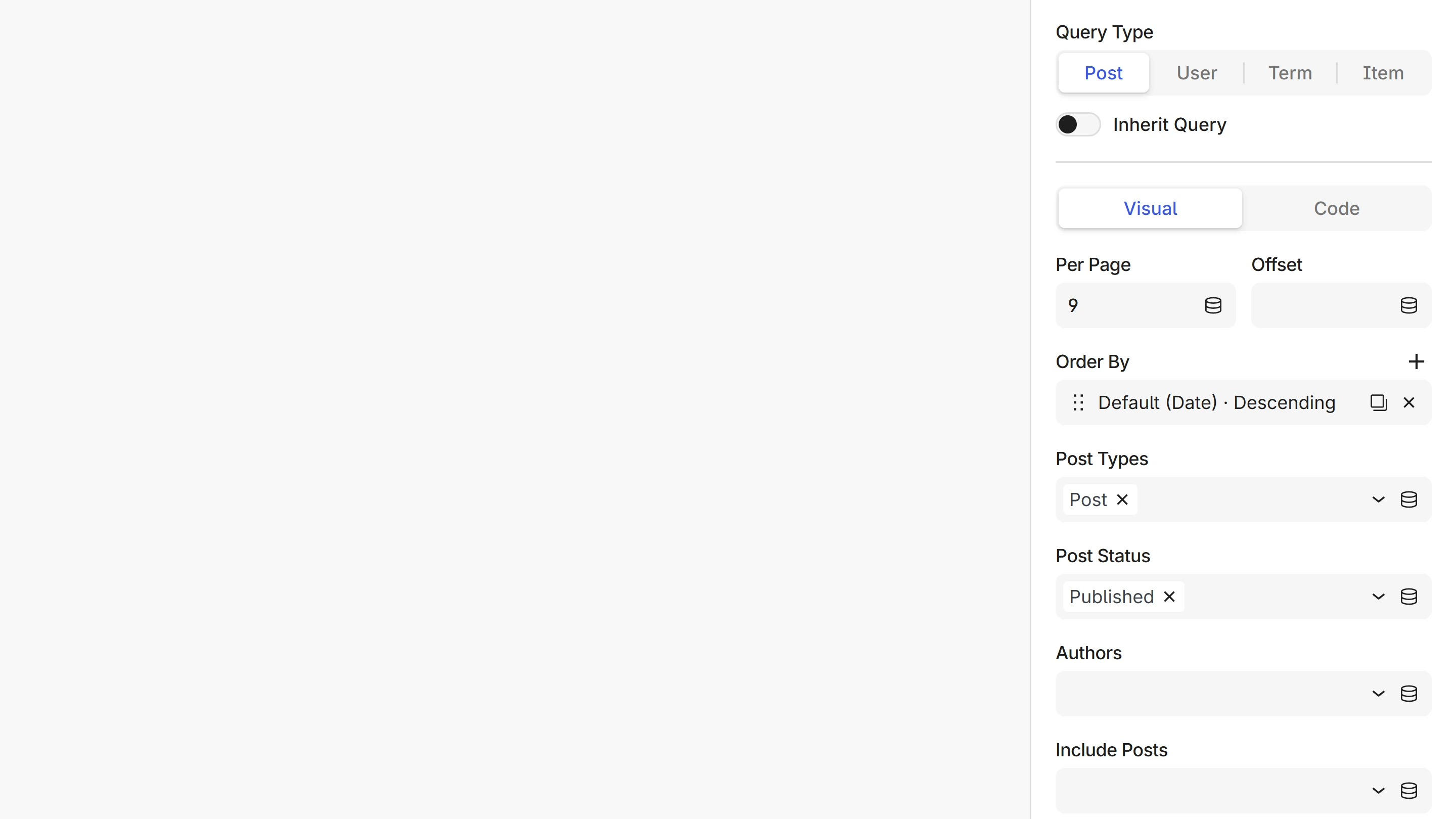
Select a Loop block (or a Variable block set to a query source), then open its query panel in the sidebar. Two switches sit at the top:
- Query Type chooses what you're querying: Post, User, Term, or Item.
- Visual / Code chooses how you edit:
- Visual is the field-by-field builder described on this page.
- Code is an editor for writing the arguments by hand as a PHP array.
Both edit the same arguments, so you can start visually and drop into code whenever you need something the builder doesn't cover.
Choosing a query type
Each type maps to a native WordPress query, and each has its own vocabulary of arguments:
| Query type | What it queries | Native query |
|---|---|---|
| Post | Posts, pages, custom post types | WP_Query |
| Term | Categories, tags, custom taxonomies | WP_Term_Query |
| User | Authors, or members of public roles | WP_User_Query |
| Item | Static lists or a data path | none |
Switching the type changes the whole field set, so the builder drops the old arguments and keeps only the pagination (per-page and offset) that carries across. Switching to Item keeps nothing.
The Item type has no visual fields. It's a plain list or a data path, so it opens the code editor directly, where you enter a JSON array, an expression, or a dotted path like post.meta.team_members.
Anatomy of the builder
The visual builder is two sections:
- The common fields, shown up front, cover what almost every query needs: how many items per page, the sort order, and the main filters for the type. For a Post query that's the post types, statuses, authors, posts to include, and the sticky-post toggle.
- Additional arguments, below, is empty until you add to it. The Add argument button opens the rest of that type's arguments, and a custom argument row covers anything WordPress accepts that isn't in the list.
Any field left at its default (or empty) writes nothing, so the query stays as short as what you actually set.
Add an argument
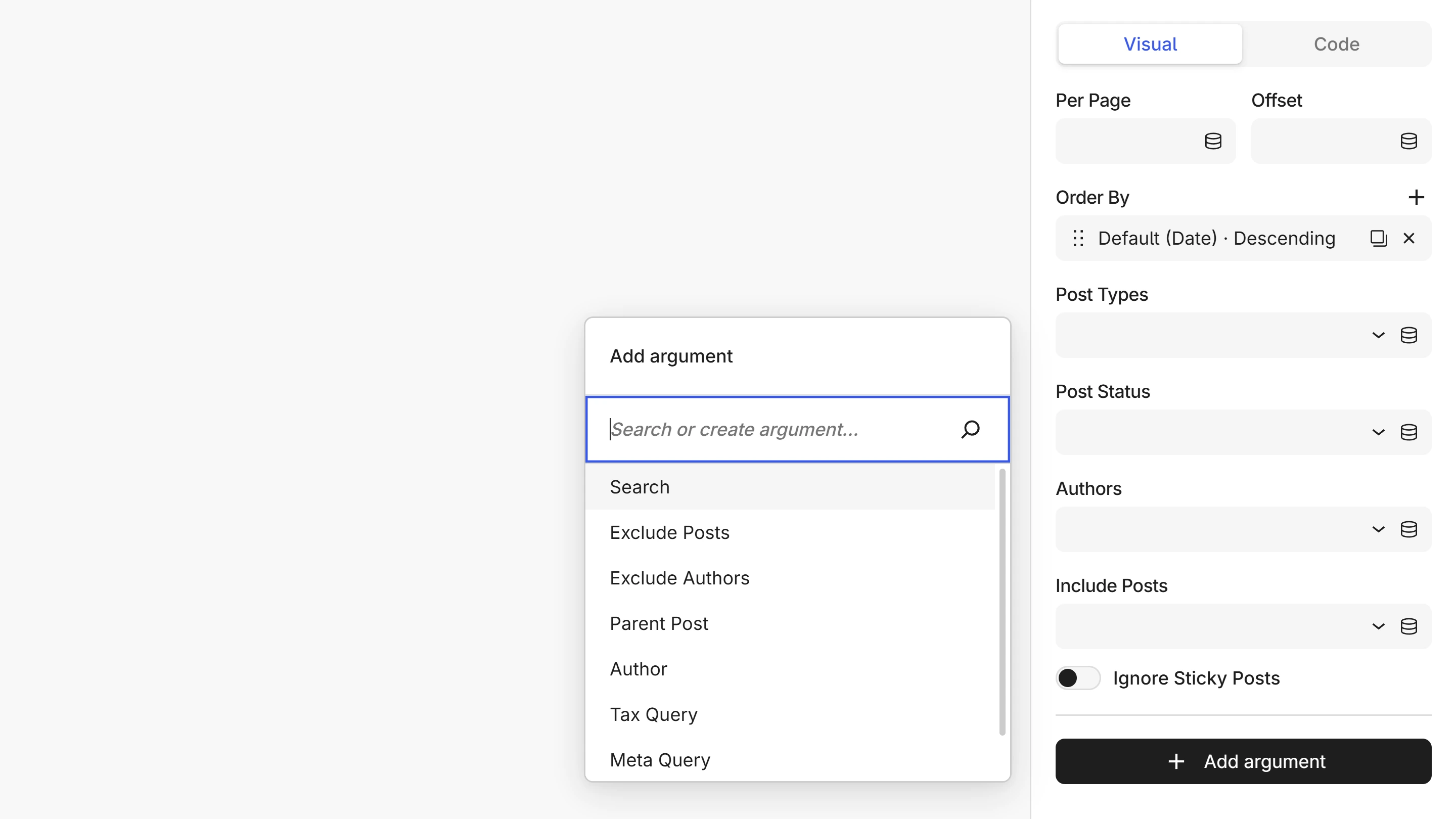
The common fields don't cover everything a query type accepts. Click Add argument to reach the rest:
- Click Add argument. A search box opens with the common extras listed.
- Start typing to search the full argument set for that type, for example
searchorparent. - Pick one, and its control drops into the Additional arguments section.
The menu stays open so you can add several at once. To remove an argument you added, use the trash button on its field, or clear its value.
Custom arguments
If an argument isn't in the catalog at all, such as a query_var a plugin registers, type its exact key in the same search box and choose Create custom. You get a key plus a value field, so any current or future WordPress argument stays reachable without touching code.
Ordering
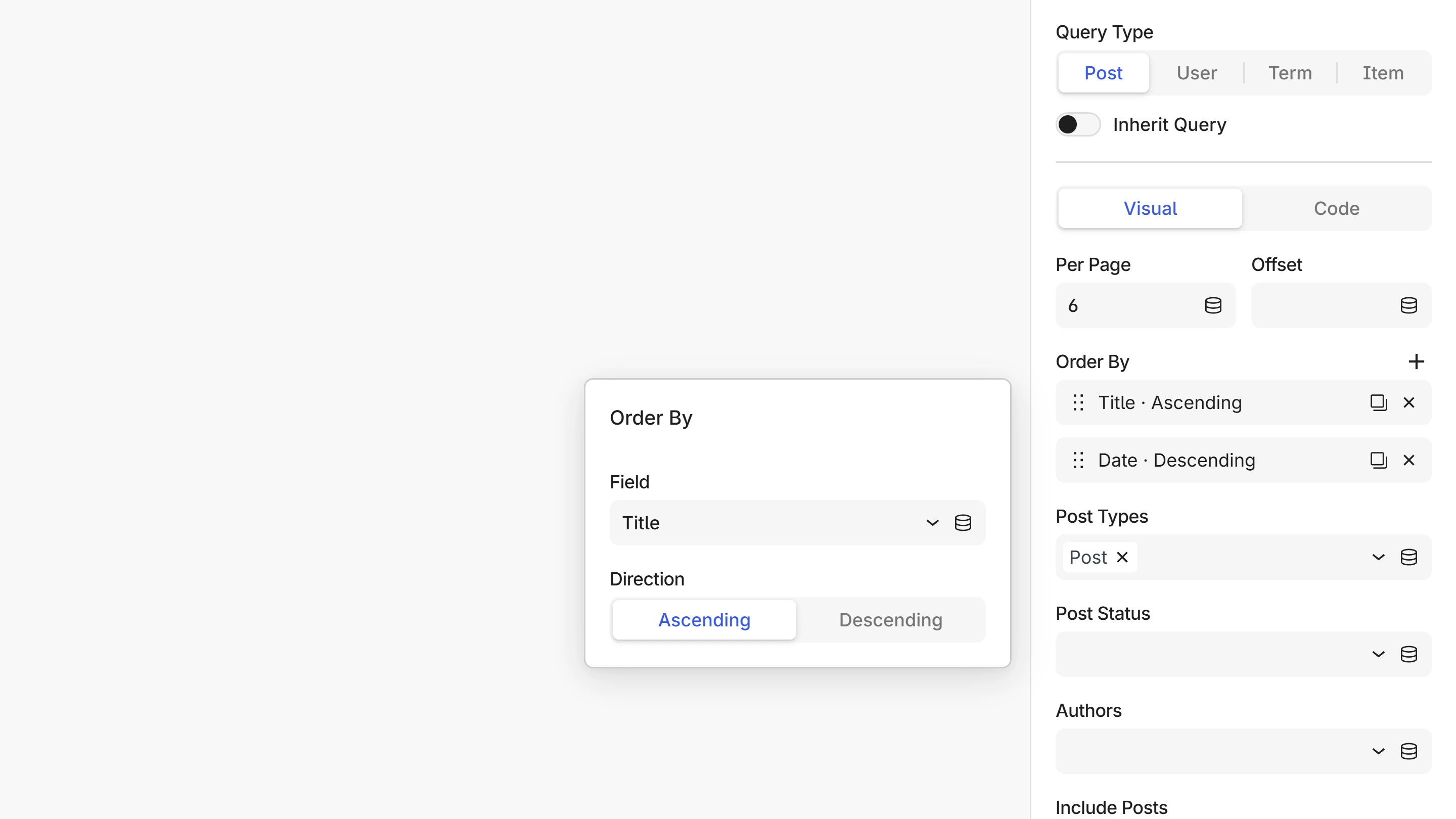
The Order By field sets the sort. For a Post query it's a list, so you can sort by more than one key:
- Set the first sort field and its direction, Ascending or Descending.
- Click Add order for a second, tie-breaking sort.
A single sort writes the plain orderby / order pair; several sorts write orderby as a field-to-direction map. Term and User queries sort by one key, so they show a single field and direction instead.
Filter with clauses: tax, meta, and date
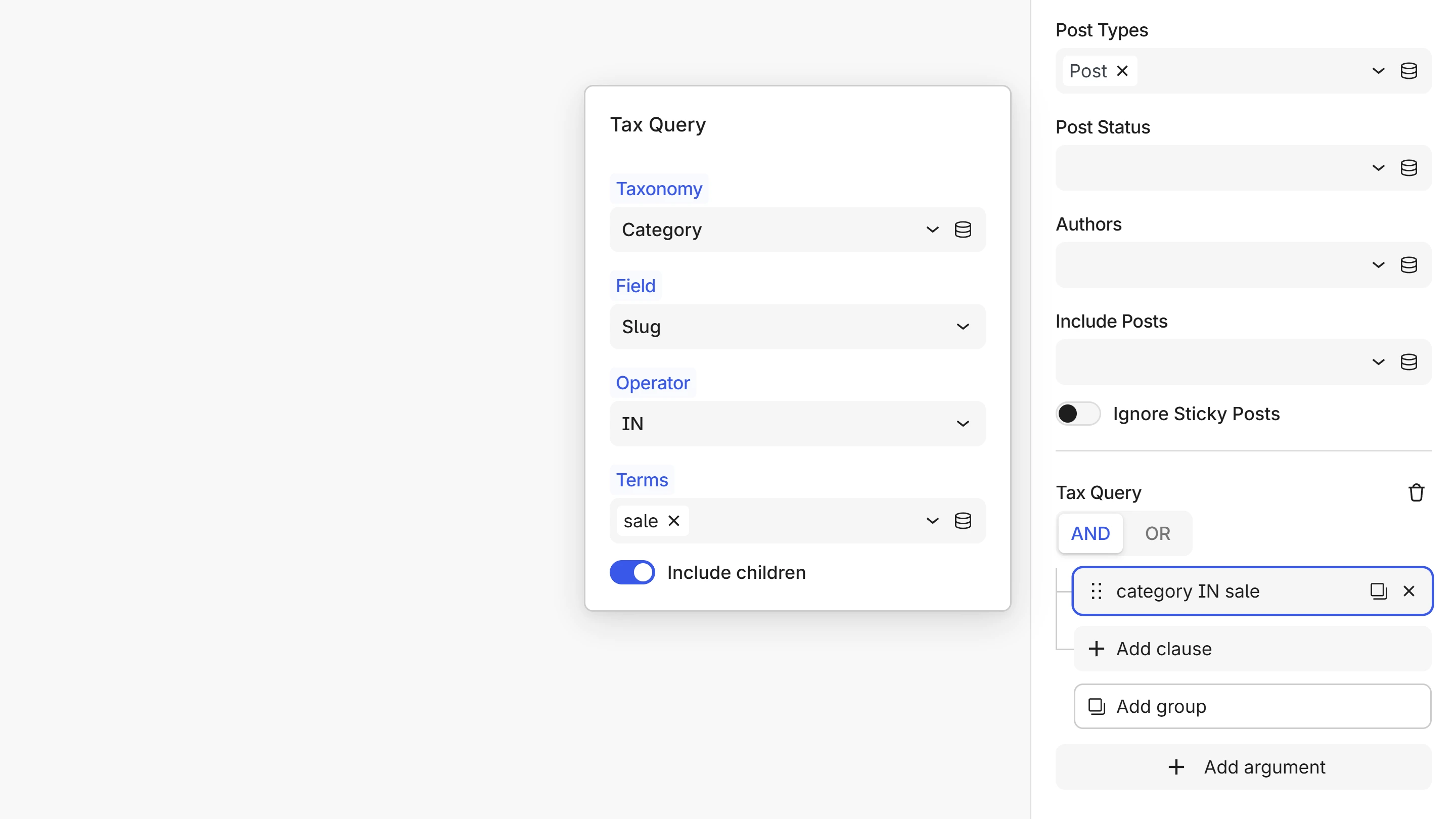
For richer filtering, add a Tax Query, Meta Query, or Date Query argument. Each opens the same clause builder the Condition Builder uses: rows grouped by AND / OR, nestable into sub-groups, reorderable by drag.
- Tax Query filters by taxonomy terms. Each clause has a taxonomy, a term field (ID, slug, name, or term taxonomy ID), an operator (IN, NOT IN, AND, EXISTS, NOT EXISTS), the terms to match, and an include children toggle.
- Meta Query filters by custom fields. Each clause has a meta key (suggested as you type), a compare operator (
=,LIKE,IN,BETWEEN,EXISTS, and so on), a value, and a cast type (CHAR,NUMERIC,DATE…).Exists/Not existsdrop the value;InandBetweenturn it into a list. - Date Query filters by date. Each clause has a column (published or modified), a compare operator,
After/Beforebounds, an inclusive toggle, and individual date parts (year, month, day, and so on).
Tax and date clauses are Post-only; meta clauses are available for Post, Term, and User queries.
Common recipes
A few classic queries, built entirely with the visual controls.
Posts in one or more categories
- Click Add argument and pick Tax Query.
- In the clause, set Taxonomy to Category, Field to Slug, and Operator to In.
- In Terms, pick one category, or several to match any of them.
Use Not in to exclude instead, or And to require every term.
[
    'post_type' => 'post',
    'tax_query' => [
        [ 'taxonomy' => 'category', 'field' => 'slug', 'terms' => [ 'news', 'guides' ], 'operator' => 'IN' ],
    ],
]
For a quick single-taxonomy filter you don't need a full clause: Add argument → Categories (any of) takes a list of categories directly.
Posts matching a custom field
- Click Add argument and pick Meta Query.
- Set the Meta key to your field, choose a Compare operator, and enter a Value.
- For numeric comparisons (a price over 100, stock above zero), set Type to NUMERIC and use
>.
[
    'post_type' => 'product',
    'meta_query' => [
        [ 'key' => 'on_sale', 'value' => 'yes', 'compare' => '=' ],
    ],
]
Order by a custom field
- In Order By, set the field to Meta value (or Meta value (numeric) for numbers) and pick a direction.
- A Meta Key field appears below Order By. Enter the custom field to sort by.
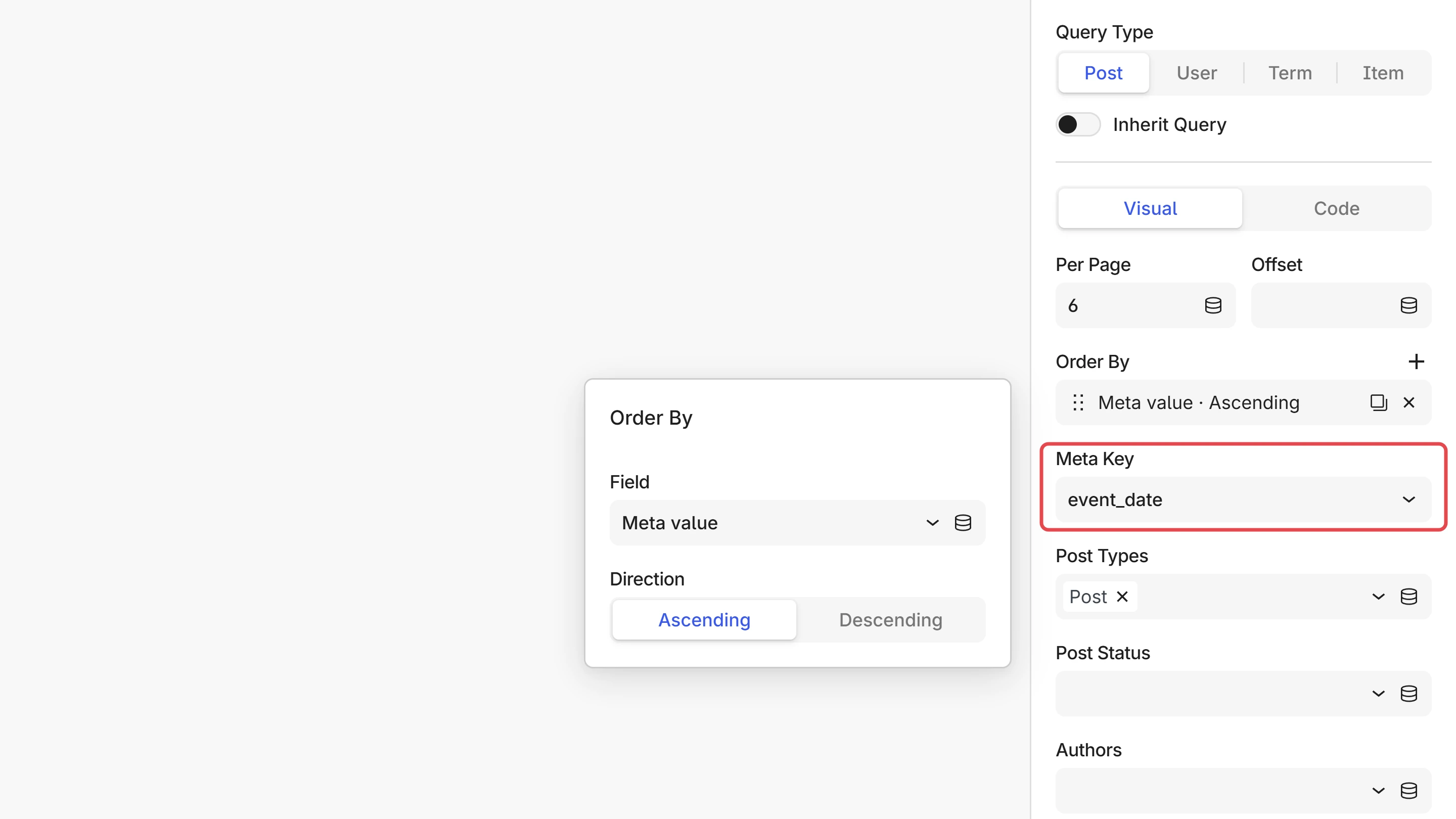
[
    'post_type' => 'event',
    'orderby' => 'meta_value',
    'meta_key' => 'event_date',
    'order' => 'ASC',
]
Any value can be dynamic
Every value field has an insert data button. Click it to open the Data Picker, search for a field, and pick it. The value becomes a {{ … }} expression instead of a literal, so you can build queries that depend on the current page:
- Include only the current post's category.
- Exclude the post being viewed.
- Sort by a field stored in a variable.
This works on plain fields, on order-by keys, and inside tax, meta, and date clauses.
Switch to code anytime
Flip the Visual / Code switch to see the arguments as a PHP array. Anything you build visually round-trips to code and back, so you can:
- Read exactly what the builder produced.
- Hand-edit for something the visual fields don't cover, then return to Visual to keep going.
Arguments the builder doesn't have a field for stay in the attribute untouched, editable in Code and shown as a custom row in Visual. Nothing you write by hand is dropped.
[
    'post_type' => 'post',
    'posts_per_page' => 6,
    'orderby' => 'date',
    'order' => 'DESC',
]
The code editor isn't limited to an array. You can also enter a whole expression that returns an array, such as {{ post.meta('query_args') }}, or the name of a Variable block that holds a query. Unblock detects the form for you, so expression and variable-reference queries live here rather than in a separate mode.
Switching the Query Type clears the arguments, keeping only per-page and offset (nothing when switching to Item). The vocabularies are different (post_type for posts, taxonomy for terms, role__in for users), so an argument from the old type wouldn't mean anything to the new one. Set the type first, then build the query.
Next steps
- Loop overview explains how the Loop block repeats its inner blocks.
- Query Posts, Query Terms, and Query Users list every argument each type accepts.
- The Data Picker is the same picker used to make any query value dynamic.
- Pagination adds page navigation once your query returns more than one page.