Activate your license
This page shows you how to activate, deactivate, and manage your Unblock license.
Activate your license
- Open any page in the WordPress editor
- Click the Unblock icon in the top toolbar — the Unblock modal opens
- Enter your license key in the activation prompt
- Click Activate to confirm your license
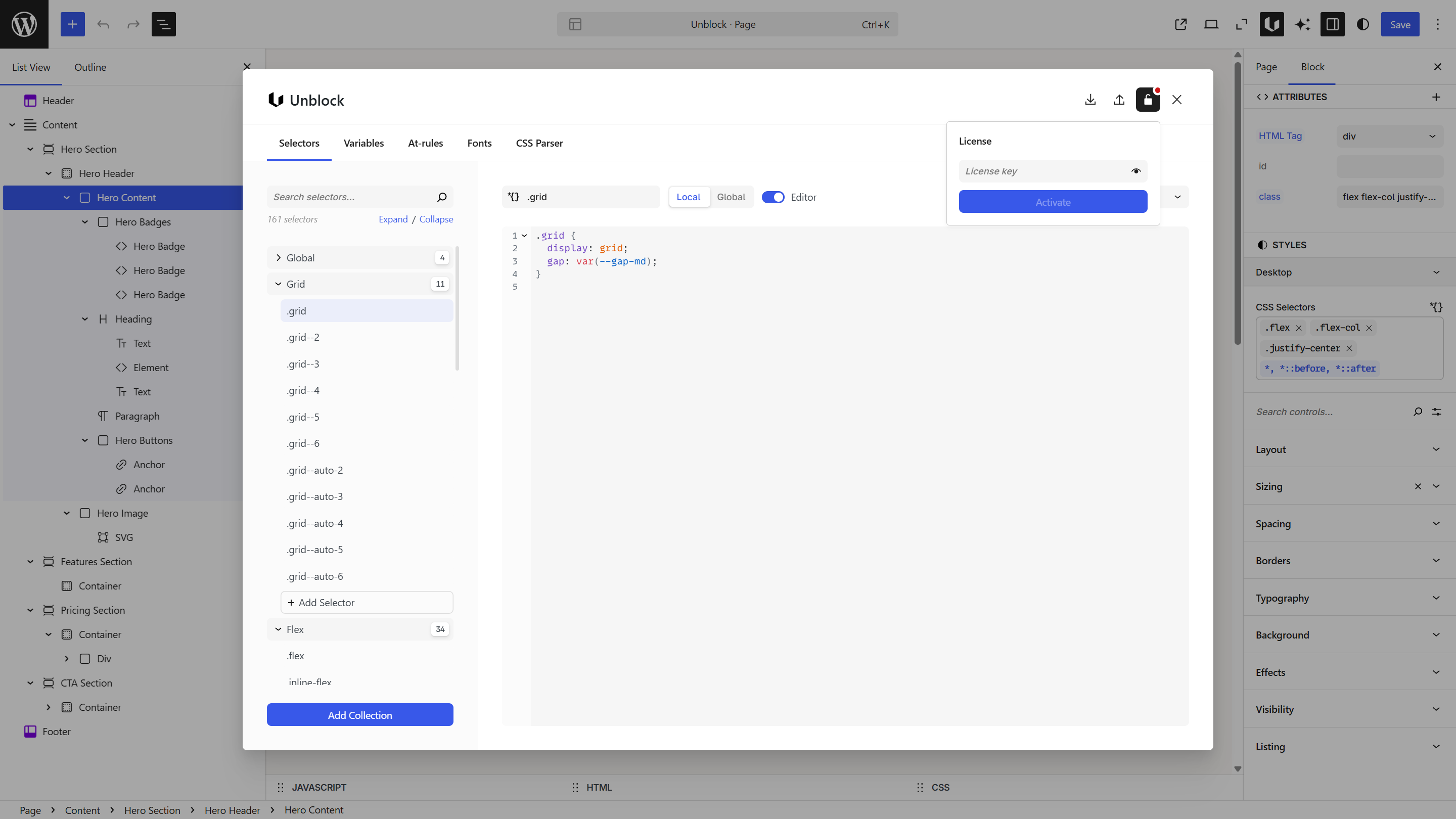
Your license is tied to the domain where you activate it. To move Unblock to a different site, deactivate the license first.
Deactivate your license
Go to the Unblock modal settings and click Deactivate. This frees up the license slot so you can use it on another site.
If you move to a new domain without deactivating first, your license will still be tied to the old domain. Deactivate before migrating.
Manage your license online
You can also view, activate, and deactivate your licenses from your account at unblockwp.com/account. This is useful if you no longer have access to the WordPress site where the license was activated.
When your license expires
The plugin continues working — your blocks, selectors, variables, and at-rules remain intact. You lose access to updates, support, and the AI assistant. Renew at unblockwp.com/account.
Troubleshooting
License won't activate — Remove any extra spaces from the key. Check that your site can reach the Unblock license server (some hosts block outgoing requests). Verify you haven't exceeded the site limit for your plan — deactivate unused sites from your account.
Next steps
- Quick start — build your first page
- Blocks overview — see every available block