Agents
This page explains the three AI agents and when to use each one.
You can switch agents anytime using the icons at the top of the chat panel. Pick the one that matches what you need right now.
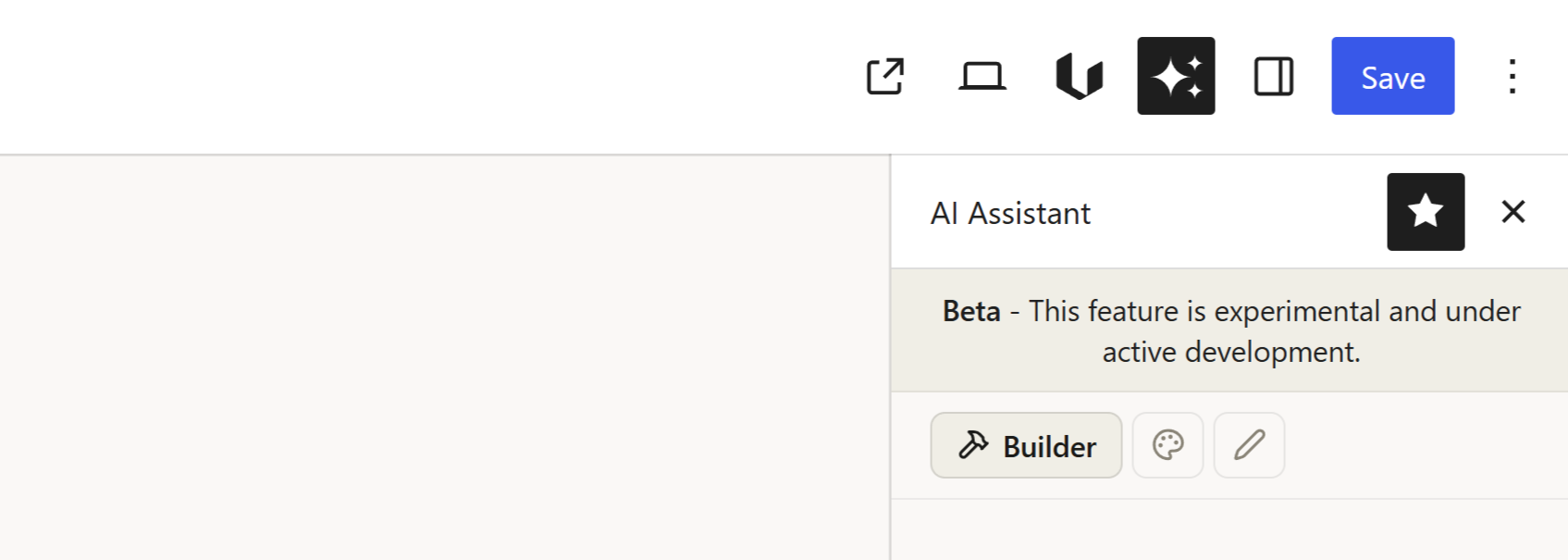
Builder
The Builder is the general-purpose agent. It handles page structure, layout, HTML, CSS, Twig expressions, and JavaScript.
When to use it:
- Building a new section from scratch
- Adding or removing blocks
- Restructuring a layout
- Adding data binding or dynamic content
Example prompts:
- "Create a hero section with a heading, paragraph, and CTA button"
- "Add a blog post grid with 3 columns"
- "Make this section display the post title and excerpt"
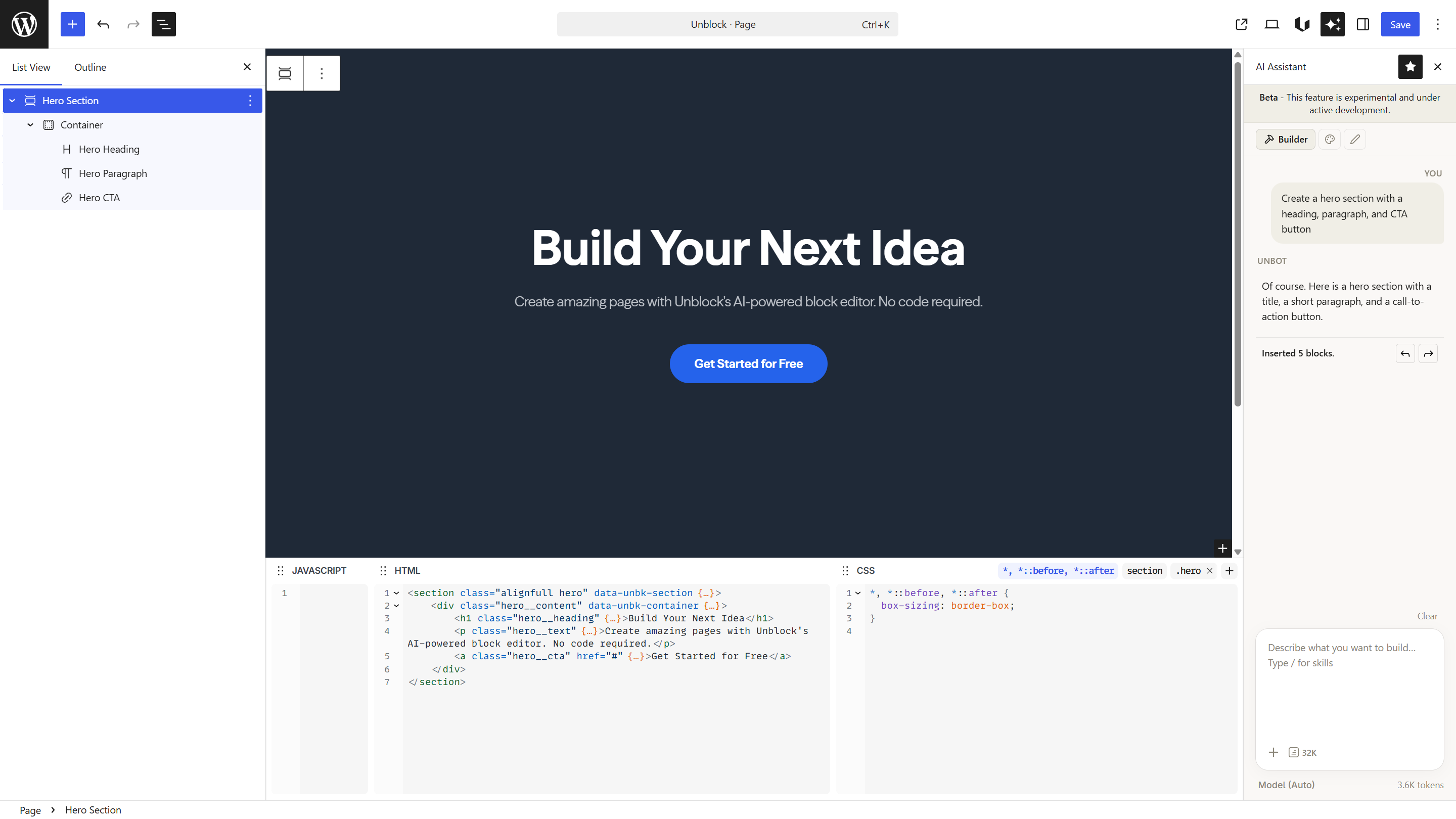
Start with Builder to create the structure. Switch to Designer for styling. Then use Writer for copy polish. This three-step workflow matches how most pages come together.
Designer
The Designer agent handles visual styling — colors, typography, spacing, layout, and animations.
It cannot add or remove blocks. It only changes how things look.
When to use it:
- Adjusting colors or color schemes
- Changing fonts and typography
- Fixing spacing and alignment
- Making layouts responsive
- Adding hover effects or transitions
Example prompts:
- "Make the heading larger with more spacing below"
- "Change the color scheme to dark blue and white"
- "Add a subtle hover effect on the cards"
If you ask the Designer to add or move blocks, it will suggest switching to the Builder agent instead.
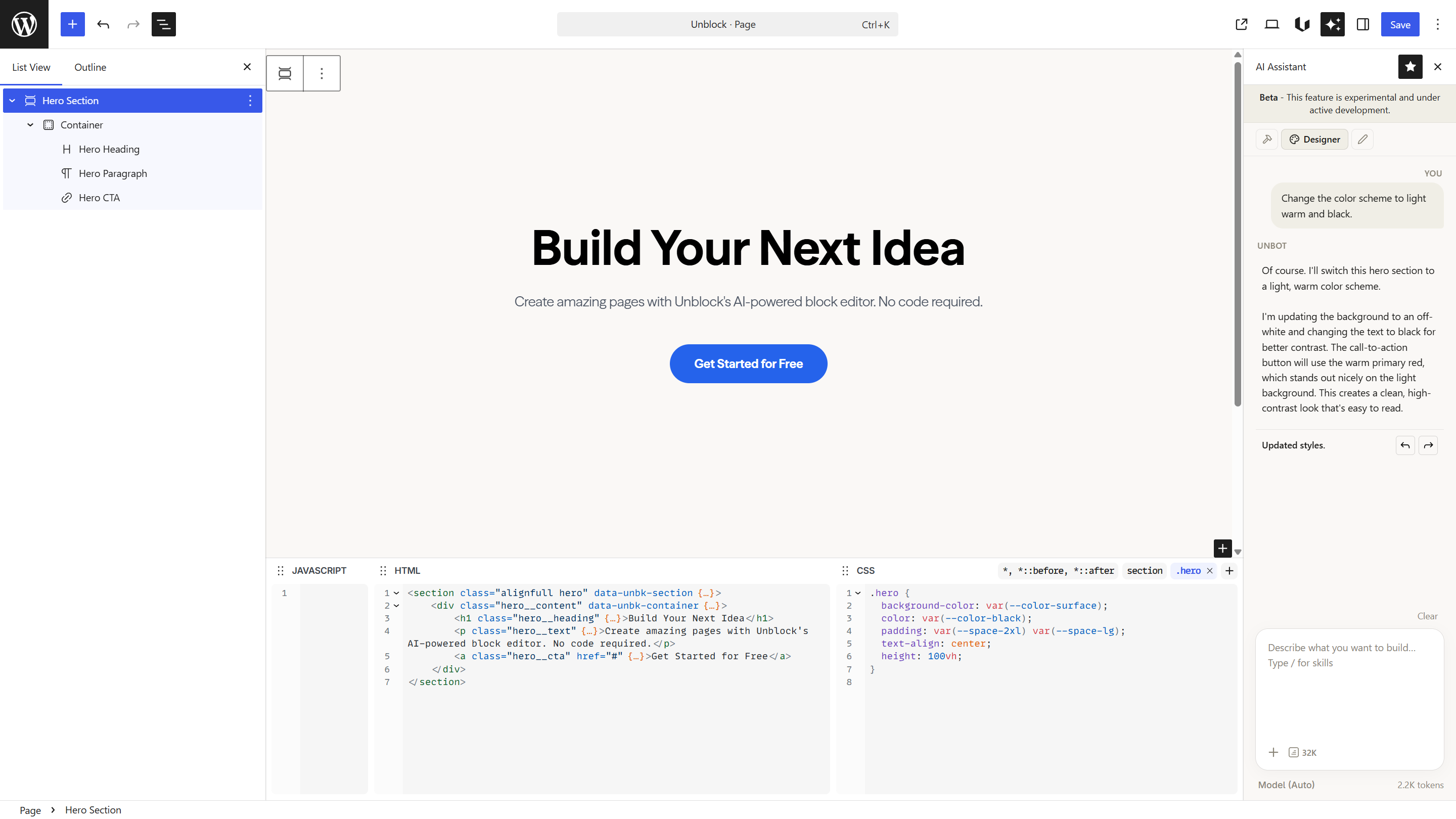
Writer
The Writer agent writes and edits text content. It adjusts tone, improves copy, and helps with messaging.
It cannot change page structure or styling. Only text.
When to use it:
- Writing headlines and subheadings
- Improving existing copy
- Adjusting tone of voice
- Optimizing text for SEO
Example prompts:
- "Rewrite this heading to be more engaging"
- "Make the body text more concise"
- "Write a compelling CTA for a SaaS landing page"
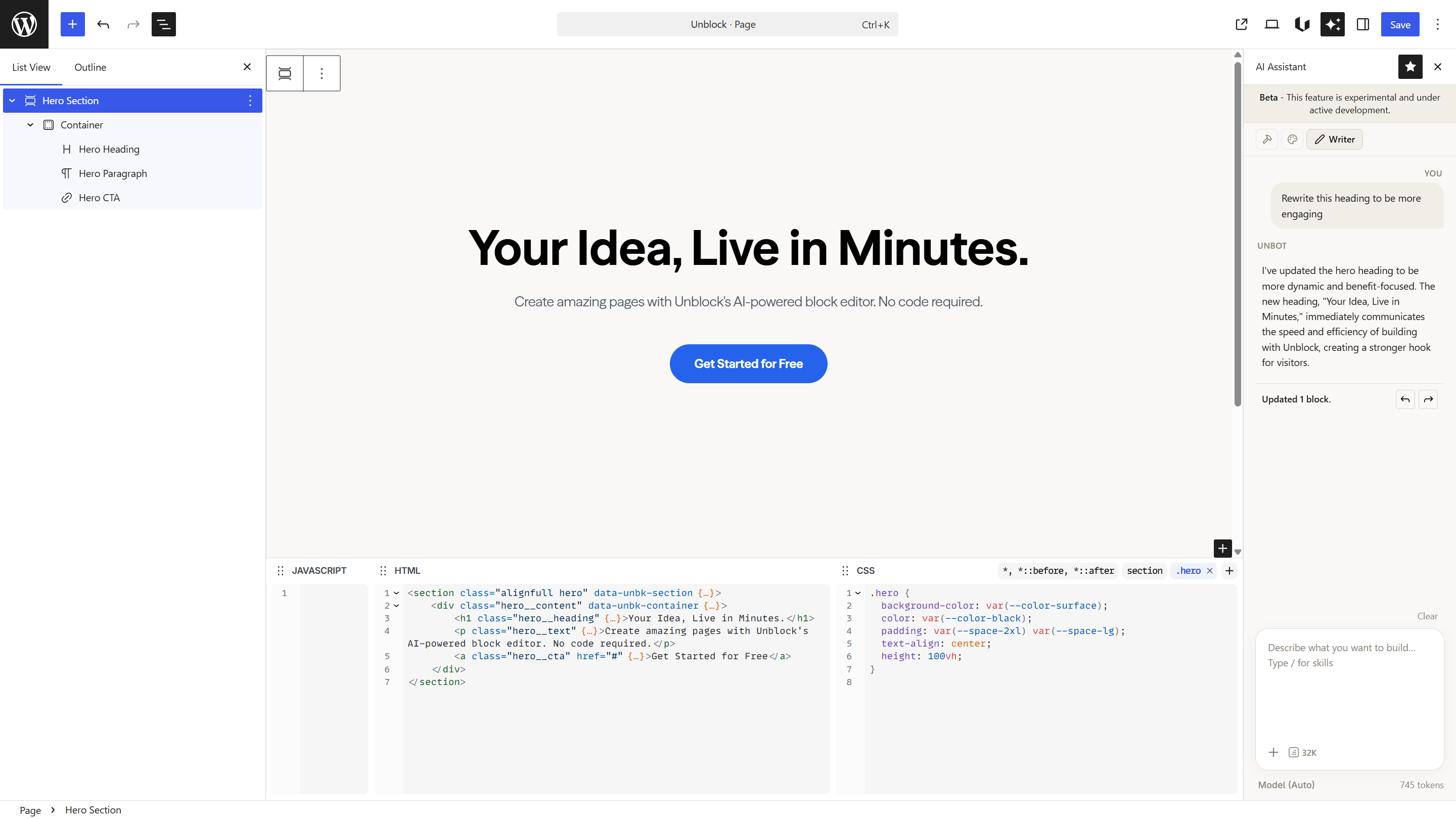
Switching between agents
Your agent choice persists across messages until you change it. You don't need to reselect it every time you send a prompt.
Don't ask the Designer to add new blocks or the Writer to change colors. Each agent is specialized — use the right one for the job, or switch.
Next steps
- Skills — activate extra capabilities for each agent
- Prompting Tips — get better results from your prompts